
JS实现帧动画:基于requestAnimationFrame的原生写法
深入讲解如何使用原生JavaScript和requestAnimationFrame实现高性能帧动画。包含时间戳插值、变频控帧、雪碧图坐标换算、状态机封装及生产避坑指南。
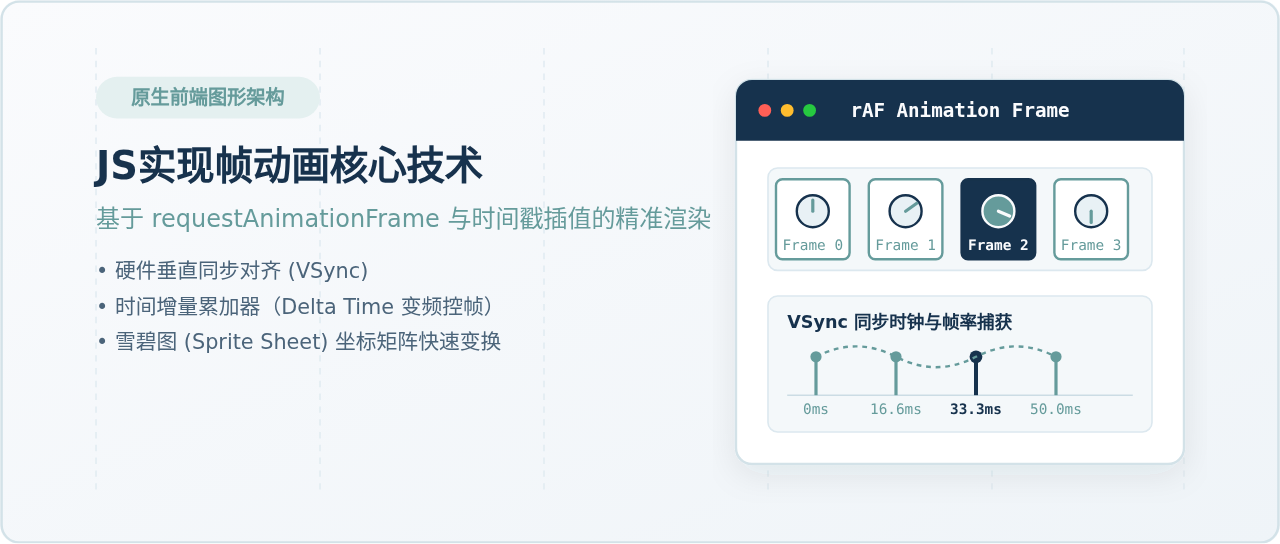
requestAnimationFrame 配合时间增量(Delta Time)算法进行控频,按目标帧率计算并推进雪碧图的坐标位移。相较于传统定时器容易出现的主线程排队卡顿与掉帧,该方案能精准锁定显示设备的垂直同步信号(VSync),在实现任意自定义动画帧率(如 12fps、24fps、60fps)的同时,兼顾流畅度与性能损耗。
一、为什么弃用 setInterval:浏览器渲染节拍剖析
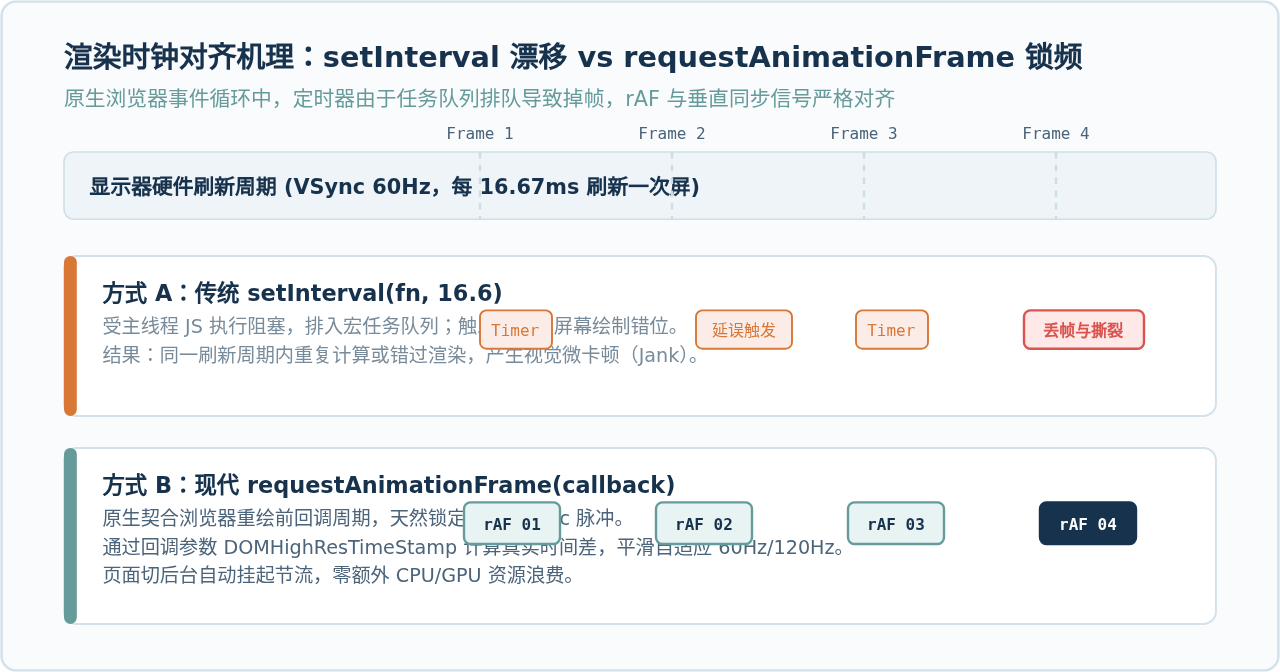
过去不少开发者习惯使用 setInterval(fn, 1000 / 60) 来实现序列帧切换。在现代浏览器架构中,这种做法存在难以根治的性能与体验缺陷:
- 宏任务排队导致时间漂移(Jank):
setInterval的回调函数属于宏任务。当主线程存在耗时脚本、样式计算或微任务队列挤压时,定时器回调往往无法在预定时刻执行,导致相邻两帧的间隔时长忽大忽小,视觉上出现明显的微卡顿。 - 与屏幕硬件刷新时钟脱节:显示器通常以固定周期(如 60Hz 对应每 16.67ms、120Hz 对应每 8.33ms)向 GPU 请求一帧画面。定时器的触发时机与屏幕重绘节拍毫无关联,可能在一帧刷新周期内多次触发造成无意义重绘,或者错过刷新临界点导致画面丢帧撕裂。
- 后台标签页持续空转:当用户最小化浏览器或切换到其他标签页时,
setInterval依然会在后台消耗 CPU 运算与图形资源,降低设备电池寿命。
而 window.requestAnimationFrame(callback) 是由浏览器原生提供的动画绘制接口。它的核心优势在于将回调函数的执行时机精准绑定在浏览器下一次重绘(Repaint)之前,天然与硬件 VSync 脉冲对齐。同时,浏览器会自动向回调函数注入一个高精度的微秒级时间戳(DOMHighResTimeStamp),并具备在页面切至后台时自动暂停挂起的节流特性。
二、核心计算原理:帧率解耦与雪碧图坐标换算
实现帧动画时,有一个普遍容易混淆的概念:屏幕刷新率(Monitor Refresh Rate)不等于动画自身的内容帧率(Target Animation FPS)。
现代显示器普遍采用 60Hz、90Hz、120Hz 甚至 144Hz 的高刷新率。而大多数逐帧动画美术资源(如人物行走、特效释放)出于体积和制作成本考虑,通常只设计为 12fps、15fps 或 24fps。如果盲目在每次 requestAnimationFrame 执行时都向后推进一帧,动画在高刷屏上的播放速度将会变快数倍。
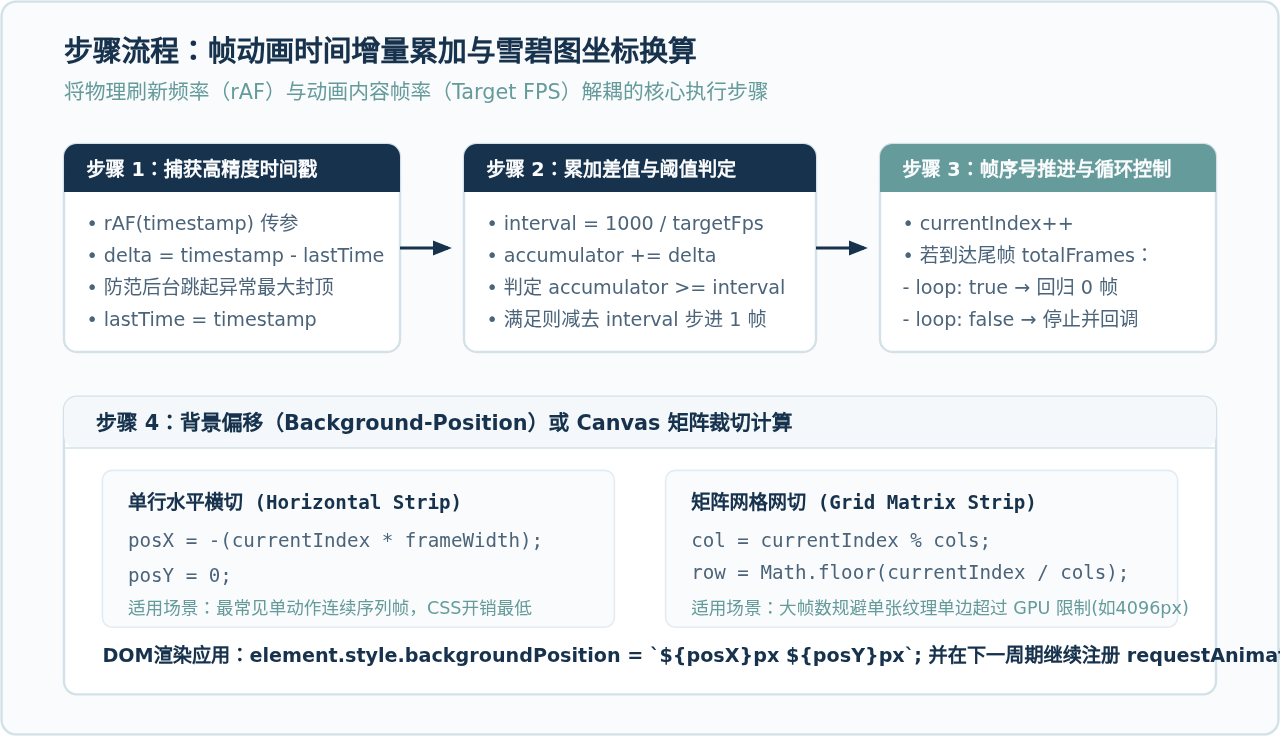
1. 时间增量累加器(Delta Time Accumulator)
要让动画在任何刷新率的设备上均保持恒定的物理播放速度,必须引入时间增量累加机制。核心公式如下:
// 设目标动画为 24 帧/秒,则单帧所需物理间隔为 41.67ms
const frameInterval = 1000 / targetFps;

// 每次 rAF 触发时,计算与上一帧的实际时间差
const delta = currentTimestamp - lastTimestamp;
lastTimestamp = currentTimestamp;

// 累加时间差
accumulator += delta;

// 当累积时间超过一帧时长时,步进帧序号
while (accumulator >= frameInterval) {
  currentIndex++;
  accumulator -= frameInterval;
}
通过这种“时间累加-阈值消耗”算法,无论屏幕是 60Hz、120Hz 还是偶发轻微卡顿,动画帧序号都能严格依据现实流逝的时间步进。
2. 雪碧图背景位置(Background-Position)映射
在 DOM 中渲染序列帧时,最高效且兼容性最好的方式是将所有帧拼接成一张雪碧图(Sprite Sheet),通过 CSS 的 background-position 属性进行像素平移裁切。
- 单行横切图(常用):序列帧沿水平方向一字排开,总宽度为
frameWidth * totalFrames。第n帧的坐标为X = -(n * frameWidth),Y = 0。 - 网格多行图(大图优化):当帧数较多时,为避免图片单边尺寸超出移动端 GPU 纹理限制(如 4096px),美术通常会将图拼成
cols列、rows行的网格。此时先求当前帧的列号和行号,再计算偏移:col = currentIndex % cols; row = Math.floor(currentIndex / cols);posX = -(col * frameWidth); posY = -(row * frameHeight);
三、原生实现步骤:封装可复用的 FrameAnimator 类
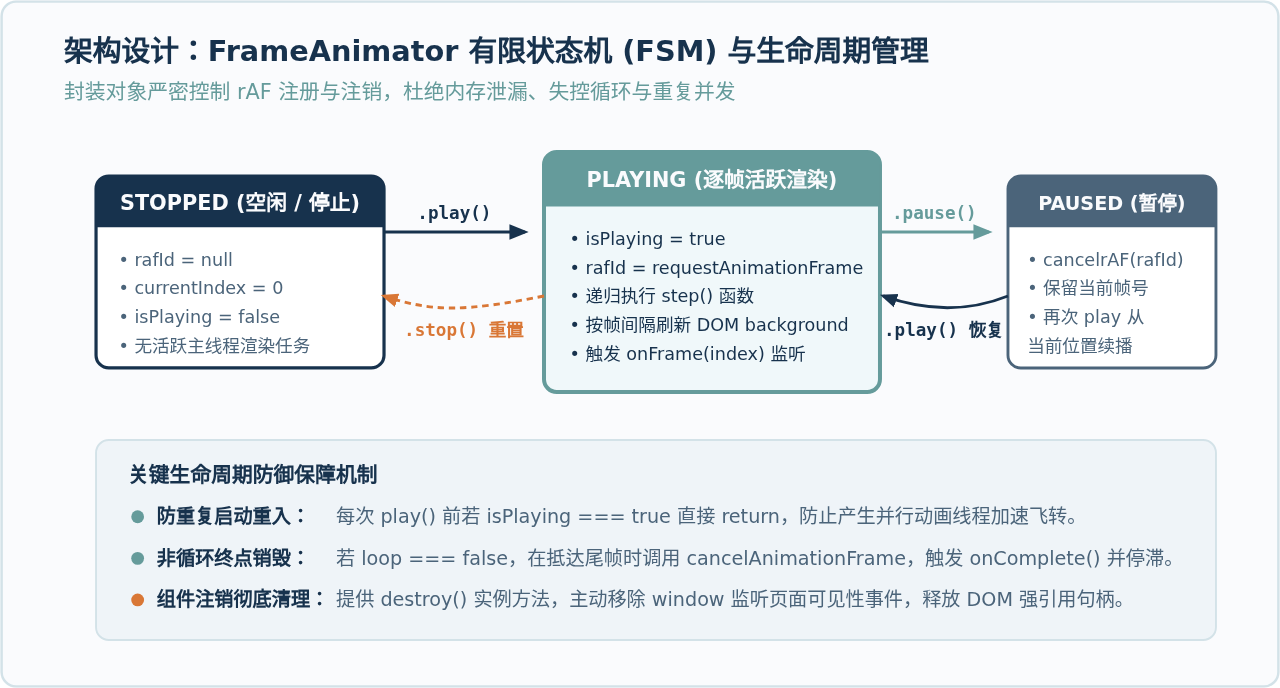
为了在实际业务中方便复用,我们采用纯原生 ES6 Class 结构,将参数校验、循环播放、暂停/继续、帧回调及生命周期管理完整封装为独立的 FrameAnimator 工具类。
1. 完整代码实现
/**
 * 原生帧动画控制器
 * 基于 requestAnimationFrame 与时间戳累加器
 */
class FrameAnimator {
  constructor(options) {
    const {
      element,           // 目标 DOM 节点
      imageUrl,          // 雪碧图地址
      frameWidth,        // 单帧宽度 (px)
      frameHeight,       // 单帧高度 (px)
      totalFrames,       // 总帧数
      fps = 24,          // 目标帧率 (默认 24fps)
      loop = true,       // 是否循环播放
      cols = null,       // 多行网格排布的列数,不传则默认为单行横切
      onFrame = null,    // 帧切换钩子 (index) => void
      onComplete = null  // 播放完毕回调 (仅在 loop: false 时生效)
    } = options;

    if (!element || !imageUrl || !frameWidth || !frameHeight || !totalFrames) {
      throw new Error('[FrameAnimator] 缺少必要参数');
    }

    this.element = element;
    this.imageUrl = imageUrl;
    this.frameWidth = frameWidth;
    this.frameHeight = frameHeight;
    this.totalFrames = totalFrames;
    this.fps = fps;
    this.loop = loop;
    this.cols = cols || totalFrames;
    this.onFrame = onFrame;
    this.onComplete = onComplete;

    // 内部运行状态
    this.currentIndex = 0;
    this.isPlaying = false;
    this.rafId = null;
    this.lastTimestamp = 0;
    this.accumulator = 0;
    this.frameInterval = 1000 / this.fps;

    this._initDom();
  }

  // 初始化 DOM 样式
  _initDom() {
    this.element.style.width = `${this.frameWidth}px`;
    this.element.style.height = `${this.frameHeight}px`;
    this.element.style.backgroundImage = `url("${this.imageUrl}")`;
    this.element.style.backgroundRepeat = 'no-repeat';
    this._renderFrame(0);
  }

  // 核心循环执行函数
  _step = (timestamp) => {
    if (!this.isPlaying) return;

    if (!this.lastTimestamp) {
      this.lastTimestamp = timestamp;
    }

    // 计算实际消耗的时间差 (封顶 100ms,防范切后台唤醒的时间突变)
    const delta = Math.min(timestamp - this.lastTimestamp, 100);
    this.lastTimestamp = timestamp;
    this.accumulator += delta;

    // 达到目标帧时钟周期,向前推进
    if (this.accumulator >= this.frameInterval) {
      const stepFrames = Math.floor(this.accumulator / this.frameInterval);
      this.accumulator %= this.frameInterval;

      this.currentIndex += stepFrames;

      // 边界判定
      if (this.currentIndex >= this.totalFrames) {
        if (this.loop) {
          this.currentIndex = this.currentIndex % this.totalFrames;
        } else {
          this.currentIndex = this.totalFrames - 1;
          this._renderFrame(this.currentIndex);
          this.stop();
          if (typeof this.onComplete === 'function') {
            this.onComplete();
          }
          return;
        }
      }

      this._renderFrame(this.currentIndex);
      if (typeof this.onFrame === 'function') {
        this.onFrame(this.currentIndex);
      }
    }

    // 注册下一轮重绘
    this.rafId = window.requestAnimationFrame(this._step);
  };

  // 刷新当前帧渲染位置
  _renderFrame(index) {
    const col = index % this.cols;
    const row = Math.floor(index / this.cols);
    const posX = -(col * this.frameWidth);
    const posY = -(row * this.frameHeight);

    this.element.style.backgroundPosition = `${posX}px ${posY}px`;
  }

  // 播放
  play() {
    if (this.isPlaying) return;
    this.isPlaying = true;
    this.lastTimestamp = 0;
    this.accumulator = 0;
    this.rafId = window.requestAnimationFrame(this._step);
  }

  // 暂停 (保留当前帧位置)
  pause() {
    if (!this.isPlaying) return;
    this.isPlaying = false;
    if (this.rafId !== null) {
      window.cancelAnimationFrame(this.rafId);
      this.rafId = null;
    }
  }

  // 停止并归零
  stop() {
    this.pause();
    this.currentIndex = 0;
    this._renderFrame(0);
  }

  // 跳转至指定帧
  gotoAndStop(frameIndex) {
    this.pause();
    this.currentIndex = Math.max(0, Math.min(frameIndex, this.totalFrames - 1));
    this._renderFrame(this.currentIndex);
  }

  // 销毁并清理内存
  destroy() {
    this.stop();
    this.element = null;
    this.onFrame = null;
    this.onComplete = null;
  }
}
2. 调用范例与挂载步骤
使用该类非常直接。准备一个带有唯一 ID 或引用的空 div 容器,并实例化控制器即可:
<!-- HTML 容器 -->
<div id="coin-anim"></div>

<script>
  const container = document.getElementById('coin-anim');

  // 实例化一个 16 帧、单帧 80x80、20fps 的金币旋转动画
  const coin = new FrameAnimator({
    element: container,
    imageUrl: './assets/coin-sprite.png',
    frameWidth: 80,
    frameHeight: 80,
    totalFrames: 16,
    fps: 20,
    loop: true,
    onFrame: (frame) => {
      // 可选:在特定帧触发音效或交互
      if (frame === 8) console.log('金币转动至高亮面');
    }
  });

  // 启动播放
  coin.play();
</script>
四、进阶工程实践与避坑指南
在实际生产环境中,特别是在移动端 Hybrid 应用或复杂交互大屏项目中,单纯调用 API 仍可能遭遇偶发隐蔽 Bug。以下是经过实战验证的四项核心规避措施:
| 潜在隐患 | 根本成因 | 规范治理策略 |
|---|---|---|
| 切后台唤醒暴冲 | 标签页隐藏时 rAF 挂起,切回时第一帧的 now - last 可能高达数秒。 |
使用 Math.min(delta, 100) 限制单步上限,或绑定 visibilitychange 事件暂停。 |
| 高清视网膜屏模糊 | 在高 DPR(Retina)屏幕下若未指定 background-size,像素拉伸失真。 |
制作 2x 精灵图,CSS 必须显式声明 background-size: [总宽CSS像素] [总高CSS像素]。 |
| 移动端黑屏/崩溃 | 单行长条雪碧图超过移动端 GPU 纹理限制(常见为 4096px 或 8192px)。 | 帧数大于 30 帧时,改为多行多列网格矩形切图,限制最大宽高。 |
| 首播空白与白闪 | 动画已调用 play(),但雪碧图尚未完成网络下载与显存解码。 |
利用 new Image() 与 img.decode() 预加载,确保解码完成后再启动。 |

五、全篇总结
在现代浏览器中,基于 requestAnimationFrame 实现原生帧动画具备极高的性能优势与工程可控性。核心逻辑可以概括为三个支点:
- 时钟底座:依托
requestAnimationFrame锁定屏幕垂直同步信号(VSync),规避setInterval的宏任务漂移与高刷丢帧缺陷。 - 节流核心:利用
DOMHighResTimeStamp计算实际物理流逝的delta,通过累加器解耦屏幕刷新率与动画帧率,实现各设备恒速播放。 - 渲染落地:通过
background-position偏移对齐雪碧图,结合有限状态机与边界封顶逻辑,实现低内存占用、高兼容度的平滑帧动画组件。
UmiJS 项目构建速度优化与打包体积精简技巧
2026-11-04 22:37:09
原生JS操作DOM与Vue/React虚拟DOM的本质区别
2026-11-04 17:52:27
怎么使用console.group和table优化JS日志可读性
2026-11-03 23:14:34
基于AST抽象语法树的JS代码反混淆实战教程
2026-11-03 21:22:24
JS手机号输入校验的性能优化与用户体验提升
2026-11-03 19:19:19