
JavaScript流程图自定义节点:怎么绘制带图标和状态的业务卡片
详细讲解在JavaScript流程图中绘制带分类图标、动态状态徽章与连接锚点的业务卡片节点,涵盖原生SVG盒模型排版、状态映射、文本溢出处理及流程图引擎集成实践。
一、业务卡片节点的结构解构与坐标规范
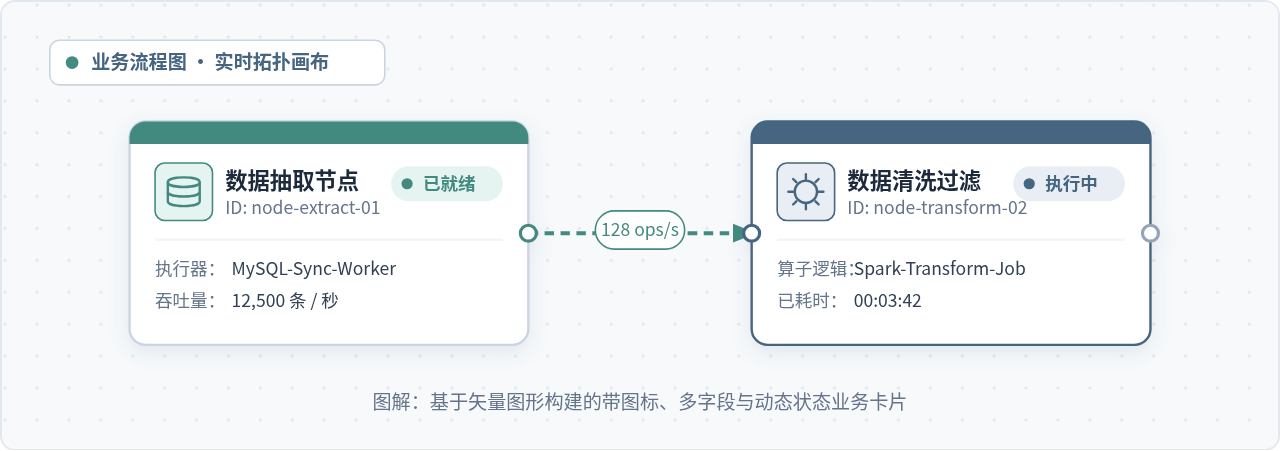
在流程图画布中,一个高可用、不易错位的业务卡片节点并不是零散图形的随意堆砌,而是拥有严谨层级关系的复合体。为了确保画布在缩放(Zoom)、平移(Pan)和导出时连接线不发生跳变,推荐为卡片设定固定的物理尺寸(例如宽度 280px、高度 160px),所有内部子元素均以卡片左上角原点 (0, 0) 进行相对坐标定位。
从视觉与功能划分,一张标准的业务卡片节点由以下七个基础图层构成:
- 外框底板(Card Container):带有圆角(rx="8")和轻量投影的矩形,决定节点的边界与拾取区域。
- 状态警示条(Accent Stripe):位于卡片顶部的薄色条(高度 3~4px),以最醒目的颜色反映当前节点的健康或执行状态。
- 业务类型图标区(Icon Box):位于左上角的 36×36 或 40×40 矩形容器,内嵌矢量 Path 图标,直观区分节点类型(如数据源、计算算子、API网关)。
- 主副标题区(Title & Subtitle):显示节点业务名称与唯一标识 ID,需要设置严格的宽度限制与截断规则。
- 状态胶囊徽章(Status Badge):位于右上角的半圆角药丸框,包含状态指示灯圆点与语义化文字(如“运行中”、“已就绪”、“失败”)。
- 水平分割线(Divider):隔离头部元数据与下方的多行业务属性。
- 连接桩锚点(Ports):分布在卡片左右侧正中或上下边缘的圆形接线端点,供边(Edge)吸附连接。
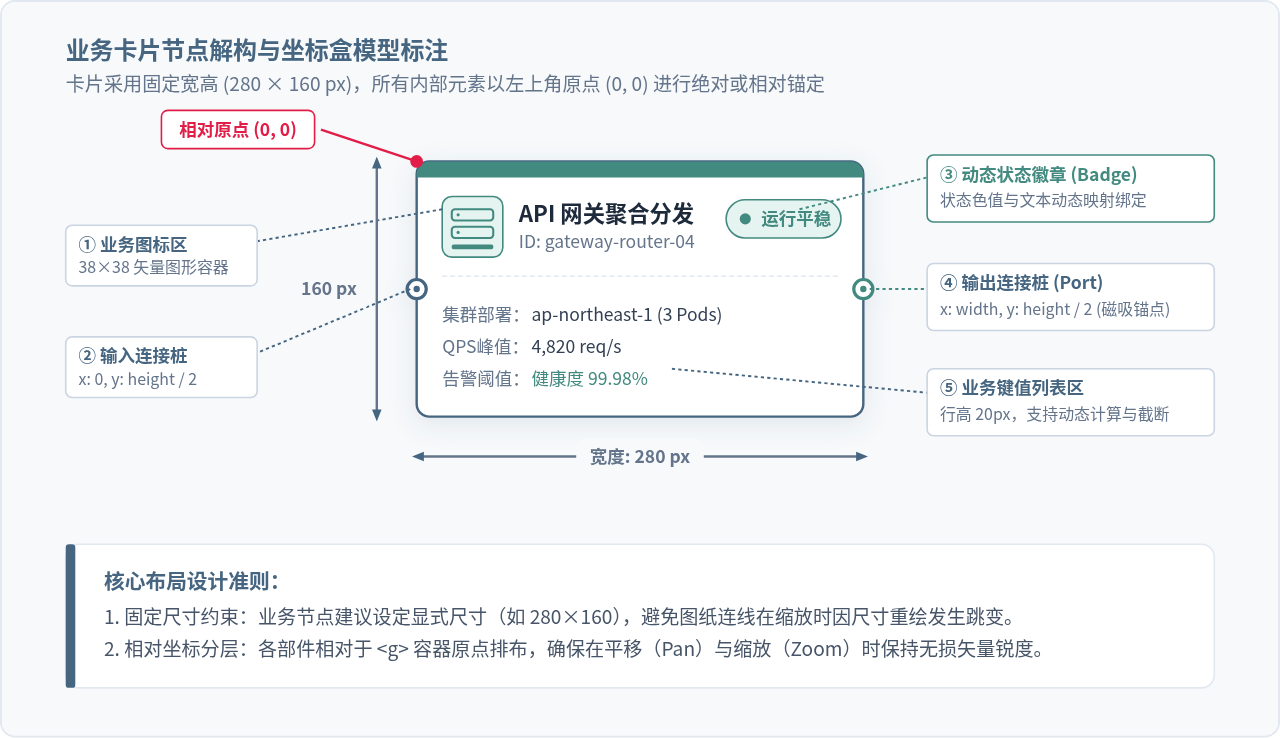
布局原则提醒:尽量避免让卡片尺寸随内部文本无限自动撑大。在流程拓扑图中,节点尺寸不稳定会导致周围已连好的正交折线(Manhattan Edge)频繁重算避障路径,引发页面重排抖动。采用固定宽度,配合内部文本换行截断,是大型工程中最稳健的做法。
二、基于原生 SVG 的自定义节点渲染实现
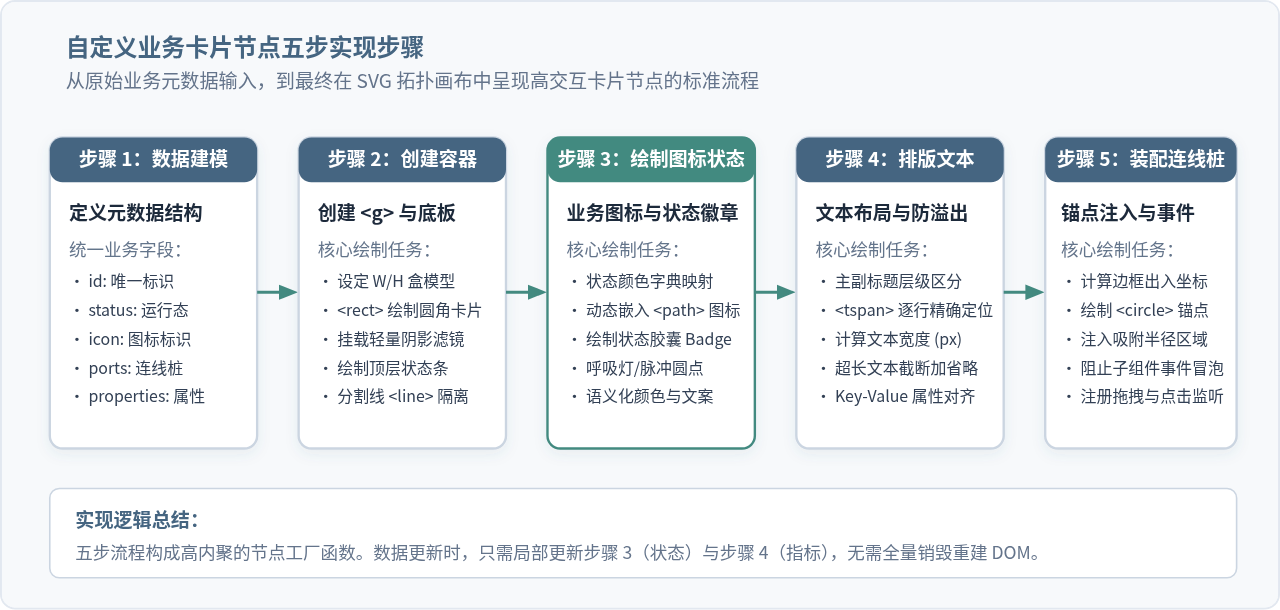
要在 JavaScript 中绘制该业务卡片,最底层且最可靠的载体是原生 SVG 元素。利用 document.createElementNS('http://www.w3.org/2000/svg', tagName),可以将卡片组装为一个独立的 <g> 容器。
下面是一个完整的节点工厂函数。它接收一个符合标准的业务数据对象,返回一个组装完毕且可直接挂载到流程图画布的 SVG 节点元素:
// 状态字典:映射色彩与状态徽章文案
const STATUS_CONFIG = {
  ready:   { label: '已就绪', color: '#438A80', bg: '#E6F4F1' },
  running: { label: '执行中', color: '#456581', bg: '#E8EEF3' },
  failed:  { label: '执行异常', color: '#DC2626', bg: '#FEE2E2' },
  pending: { label: '排队等待', color: '#64748B', bg: '#F1F5F9' }
};

// 图标库字典:内联矢量路径
const ICON_PATHS = {
  database: 'M4 8C4 6 12 6 12 6C12 6 20 6 20 8C20 10 12 10 12 10C12 10 4 10 4 8ZM4 8V16C4 18 12 18 12 18C12 18 20 18 20 16V8M4 12C4 14 12 14 12 14C12 14 20 14 20 12',
  compute:  'M12 4L4 8L12 12L20 8L12 4ZM4 12L12 16L20 12M4 16L12 20L20 16',
  api:      'M4 6H20V18H4ZM8 10H16M8 14H12'
};

/**
 * 创建高内聚的业务卡片 SVG 节点
 * @param {Object} nodeData - 包含 id, title, icon, status, properties 等字段
 * @returns {SVGElement} <g> 节点元素
 */
function createBusinessCardNode(nodeData) {
  const NS = 'http://www.w3.org/2000/svg';
  const width = 280;
  const height = 160;
  const statusInfo = STATUS_CONFIG[nodeData.status] || STATUS_CONFIG.pending;
  const iconD = ICON_PATHS[nodeData.icon] || ICON_PATHS.compute;

  // 1. 创建主分组容器
  const group = document.createElementNS(NS, 'g');
  group.setAttribute('class', 'flow-business-node');
  group.setAttribute('data-id', nodeData.id);

  // 2. 底板卡片矩形
  const bgRect = document.createElementNS(NS, 'rect');
  bgRect.setAttribute('width', width);
  bgRect.setAttribute('height', height);
  bgRect.setAttribute('rx', '8');
  bgRect.setAttribute('fill', '#FFFFFF');
  bgRect.setAttribute('stroke', statusInfo.color);
  bgRect.setAttribute('stroke-width', '1.5');
  group.appendChild(bgRect);

  // 3. 顶部状态色彩条
  const stripe = document.createElementNS(NS, 'path');
  stripe.setAttribute('d', `M 0 8 A 8 8 0 0 1 8 0 L ${width - 8} 0 A 8 8 0 0 1 ${width} 8 L ${width} 10 L 0 10 Z`);
  stripe.setAttribute('fill', statusInfo.color);
  group.appendChild(stripe);

  // 4. 左上角图标区
  const iconBox = document.createElementNS(NS, 'rect');
  iconBox.setAttribute('x', '16');
  iconBox.setAttribute('y', '22');
  iconBox.setAttribute('width', '38');
  iconBox.setAttribute('height', '38');
  iconBox.setAttribute('rx', '6');
  iconBox.setAttribute('fill', statusInfo.bg);
  iconBox.setAttribute('stroke', statusInfo.color);
  iconBox.setAttribute('stroke-width', '1');
  group.appendChild(iconBox);

  // 矢量图标 Path
  const iconPath = document.createElementNS(NS, 'path');
  iconPath.setAttribute('d', iconD);
  iconPath.setAttribute('transform', 'translate(23, 29) scale(1.0)');
  iconPath.setAttribute('fill', 'none');
  iconPath.setAttribute('stroke', statusInfo.color);
  iconPath.setAttribute('stroke-width', '1.6');
  iconPath.setAttribute('stroke-linecap', 'round');
  iconPath.setAttribute('stroke-linejoin', 'round');
  group.appendChild(iconPath);

  // 5. 标题与编码(使用文本截断)
  const titleText = document.createElementNS(NS, 'text');
  titleText.setAttribute('x', '64');
  titleText.setAttribute('y', '38');
  titleText.setAttribute('font-size', '14');
  titleText.setAttribute('font-weight', '700');
  titleText.setAttribute('fill', '#1E293B');
  titleText.textContent = truncateText(nodeData.title, 10);
  group.appendChild(titleText);

  const subText = document.createElementNS(NS, 'text');
  subText.setAttribute('x', '64');
  subText.setAttribute('y', '54');
  subText.setAttribute('font-size', '11');
  subText.setAttribute('fill', '#64748B');
  subText.textContent = `ID: ${nodeData.id}`;
  group.appendChild(subText);

  // 6. 状态徽章(Badge)
  const badgeGroup = document.createElementNS(NS, 'g');
  badgeGroup.setAttribute('transform', `translate(${width - 86}, 24)`);

  const badgeBg = document.createElementNS(NS, 'rect');
  badgeBg.setAttribute('width', '72');
  badgeBg.setAttribute('height', '24');
  badgeBg.setAttribute('rx', '12');
  badgeBg.setAttribute('fill', statusInfo.bg);
  badgeBg.setAttribute('stroke', statusInfo.color);
  badgeBg.setAttribute('stroke-width', '1');
  badgeGroup.appendChild(badgeBg);

  const badgeDot = document.createElementNS(NS, 'circle');
  badgeDot.setAttribute('cx', '12');
  badgeDot.setAttribute('cy', '12');
  badgeDot.setAttribute('r', '3.5');
  badgeDot.setAttribute('fill', statusInfo.color);
  badgeGroup.appendChild(badgeDot);

  const badgeLabel = document.createElementNS(NS, 'text');
  badgeLabel.setAttribute('x', '22');
  badgeLabel.setAttribute('y', '16');
  badgeLabel.setAttribute('font-size', '11');
  badgeLabel.setAttribute('font-weight', '600');
  badgeLabel.setAttribute('fill', statusInfo.color);
  badgeLabel.textContent = statusInfo.label;
  badgeGroup.appendChild(badgeLabel);

  group.appendChild(badgeGroup);

  // 7. 分割线
  const divider = document.createElementNS(NS, 'line');
  divider.setAttribute('x1', '16');
  divider.setAttribute('y1', '72');
  divider.setAttribute('x2', width - 16);
  divider.setAttribute('y2', '72');
  divider.setAttribute('stroke', '#E2E8F0');
  divider.setAttribute('stroke-width', '1');
  divider.setAttribute('stroke-dasharray', '3,2');
  group.appendChild(divider);

  // 8. 业务键值列表
  const propsGroup = document.createElementNS(NS, 'g');
  propsGroup.setAttribute('transform', 'translate(16, 88)');
  const entries = Object.entries(nodeData.properties || {}).slice(0, 3);
  entries.forEach(([key, val], idx) => {
    const yOffset = idx * 20;
    const label = document.createElementNS(NS, 'text');
    label.setAttribute('x', '0');
    label.setAttribute('y', yOffset + 12);
    label.setAttribute('font-size', '11');
    label.setAttribute('fill', '#64748B');
    label.textContent = `${key}:`;
    propsGroup.appendChild(label);

    const value = document.createElementNS(NS, 'text');
    value.setAttribute('x', '56');
    value.setAttribute('y', yOffset + 12);
    value.setAttribute('font-size', '11');
    value.setAttribute('fill', '#334155');
    value.setAttribute('font-weight', '500');
    value.textContent = truncateText(String(val), 18);
    propsGroup.appendChild(value);
  });
  group.appendChild(propsGroup);

  // 9. 连接桩(输入桩在左中,输出桩在右中)
  appendPort(group, 0, height / 2, 'input', '#456581');
  appendPort(group, width, height / 2, 'output', '#438A80');

  return group;
}

function appendPort(parentGroup, cx, cy, type, color) {
  const NS = 'http://www.w3.org/2000/svg';
  const port = document.createElementNS(NS, 'circle');
  port.setAttribute('cx', cx);
  port.setAttribute('cy', cy);
  port.setAttribute('r', '6');
  port.setAttribute('fill', '#FFFFFF');
  port.setAttribute('stroke', color);
  port.setAttribute('stroke-width', '2');
  port.setAttribute('class', `node-port node-port-${type}`);
  parentGroup.appendChild(port);
}

function truncateText(str, maxLen) {
  if (!str) return '';
  return str.length > maxLen ? str.slice(0, maxLen) + '…' : str;
}
三、主流流程图引擎中的工程化集成与选型
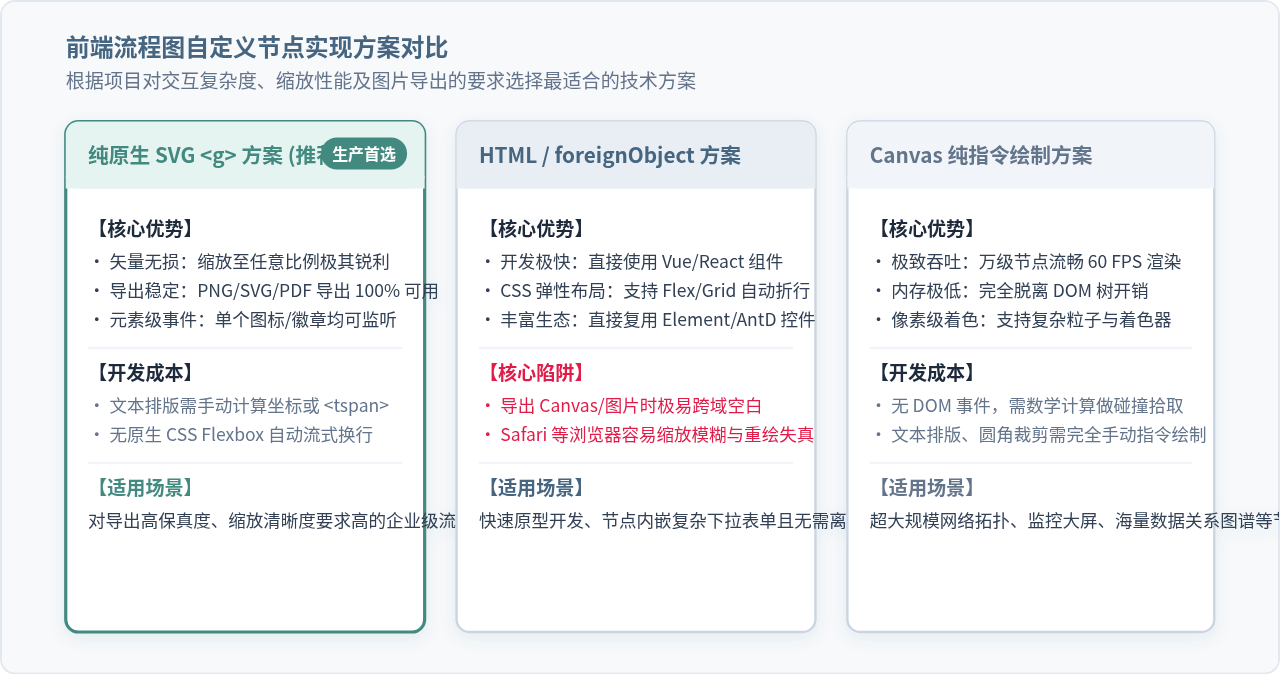
在实际生产环境中,我们往往借助现有的开源流程图引擎(例如 AntV X6、LogicFlow、jsPlumb 等)来处理画布平移、多选拖拽、正交连线路由和撤销重做。不同的底层渲染模式直接决定了自定义卡片的开发体验和系统上限。
以 AntV X6 为例的标准注册范式
在 AntV X6 中,纯 SVG 模式推荐使用 Graph.registerNode 或继承 Node 实体并提供标准 markup。这样无需引入任何外部 HTML 容器,既能享有极高的渲染性能,又能保证导出 PNG/SVG 图片时无损呈现:
import { Graph, Node } from '@antv/x6';

// 注册名为 'business-card' 的自定义流程卡片
Graph.registerNode('business-card', {
  inherit: 'rect',
  width: 280,
  height: 160,
  // 使用 Markup 声明静态骨架
  markup: [
    { tagName: 'rect', selector: 'body' },
    { tagName: 'path', selector: 'statusStripe' },
    { tagName: 'rect', selector: 'iconBox' },
    { tagName: 'path', selector: 'icon' },
    { tagName: 'text', selector: 'title' },
    { tagName: 'text', selector: 'subtitle' },
    { tagName: 'g', selector: 'badgeGroup', children: [
      { tagName: 'rect', selector: 'badgeBg' },
      { tagName: 'circle', selector: 'badgeDot' },
      { tagName: 'text', selector: 'badgeText' }
    ]}
  ],
  // 定义预设连接桩布局
  ports: {
    groups: {
      in:  { position: 'left',  attrs: { circle: { r: 5, magnet: true, stroke: '#456581', fill: '#FFF' } } },
      out: { position: 'right', attrs: { circle: { r: 5, magnet: true, stroke: '#438A80', fill: '#FFF' } } }
    },
    items: [
      { id: 'port-in', group: 'in' },
      { id: 'port-out', group: 'out' }
    ]
  }
});

// 动态响应业务状态变更
function updateNodeStatus(nodeInstance, newStatus) {
  const config = STATUS_CONFIG[newStatus];
  if (!config) return;

  // 局部增量刷新属性,无须重新创建节点
  nodeInstance.attr({
    body: { stroke: config.color },
    statusStripe: { fill: config.color },
    iconBox: { fill: config.bg, stroke: config.color },
    icon: { stroke: config.color },
    badgeBg: { fill: config.bg, stroke: config.color },
    badgeDot: { fill: config.color },
    badgeText: { fill: config.color, text: config.label }
  });
}
四、避坑指南:长文本溢出、缩放模糊与事件冒泡
在自研或深度定制业务卡片时,有几个非常隐蔽但高发的工程陷阱需要特别注意:
1. 警惕直接使用 foreignObject 的导出灾难
部分开发者为了利用 CSS 的 display: flex 排版,会直接在 SVG 节点内部使用 <foreignObject> 嵌入 HTML 的 DIV。但在生产环境中:
- 使用
html2canvas或把 SVG 绘制到 HTML5 Canvas 进行导出时,跨域的样式表和外链字体会导致图片变空白或字符乱码。 - 在 Safari 浏览器或高分屏 Retina 下,画布整体缩放时
foreignObject内部经常出现锯齿、模糊或文字排版抖动。 - 因此,若系统有流程图导出为 PDF 或高清图片的需求,强烈建议坚持使用纯 SVG 元素构建节点。
2. SVG 文本的主动度量与多行排版
原生 <text> 标签不支持自动折行。若业务属性名称过长,直接显示会穿透卡片边框。解决手段是在挂载到 DOM 之前,利用临时度量函数计算字符宽度:
// 基于离屏 Canvas 进行快速字符像素宽度度量
const canvasCtx = document.createElement('canvas').getContext('2d');
canvasCtx.font = '12px sans-serif';

function clampTextByWidth(text, maxWidth) {
  if (canvasCtx.measureText(text).width <= maxWidth) return text;
  let len = text.length;
  while (len > 0 && canvasCtx.measureText(text.slice(0, len) + '…').width > maxWidth) {
    len--;
  }
  return text.slice(0, len) + '…';
}
3. 连线桩(Ports)的事件冒泡与吸附半径
卡片内部通常包含查看详情、重试任务等小按钮。如果未阻止 mousedown 和 click 事件冒泡,用户点击按钮时会同时触发“卡片拖拽选中”或者“画布框选”行为。
避坑关键:在所有交互式子元素(状态胶囊、可折叠图标、小操作按钮)上,必须显式调用 event.stopPropagation()。此外,连接桩应设置透明的外部保护圈(例如实际绘制 r=6,但外挂一个 r=14 且 fill="transparent" 的无色圆环),以便用户连线时更容易被光标捕获吸附。
五、全生命周期与状态驱动架构总结
综上所述,一个健壮的业务流程卡片不仅是一段绘图逻辑,而是一套连接业务状态机与视图表现层的桥梁。其核心思想在于单向数据流驱动与局部增量修补(Patching):
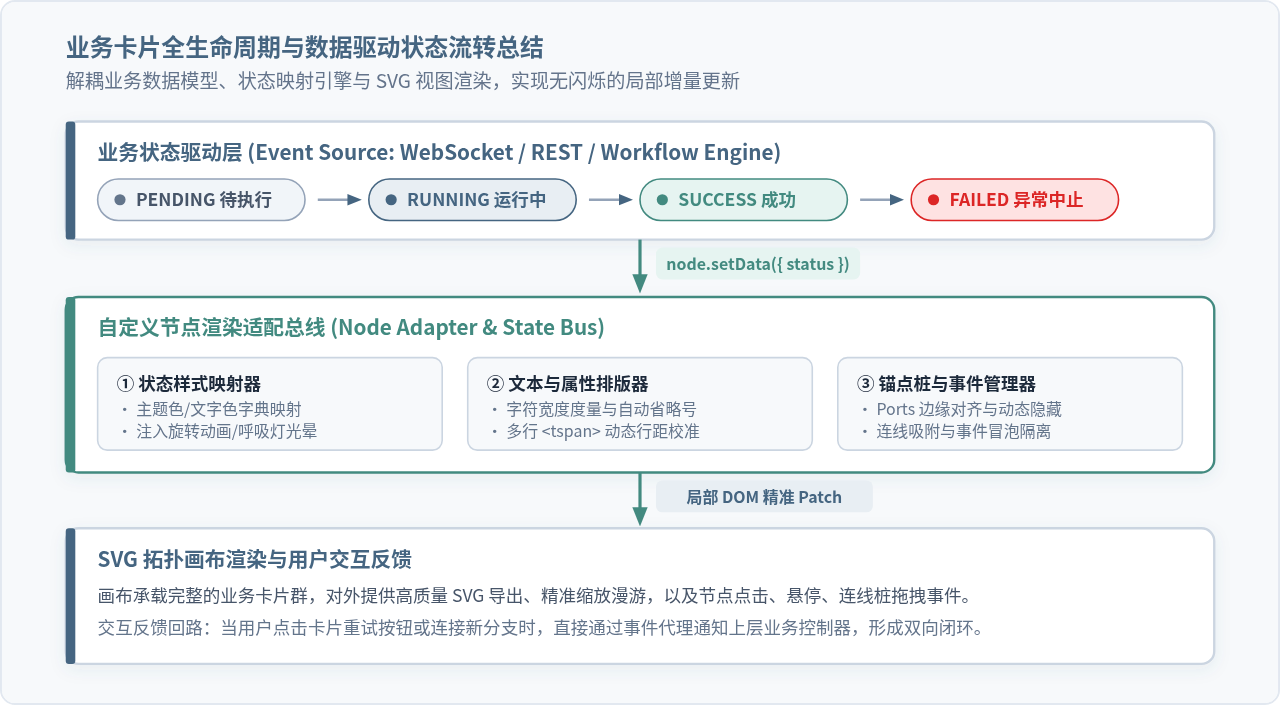
当后端推送新的执行状态或吞吐量指标时,应用层无需重新计算整张拓扑图的连线与拓扑布局,只需将状态变化分发到对应节点的适配总线中,定向改变顶部状态条的 fill、徽章的 text 与指标数值。这种解耦方式不仅确保了界面运行时的 60 FPS 流畅度,也为后续扩展更复杂的业务卡片奠定了规范的工程基础。
JavaScript树路径查找栈溢出怎么办?迭代法替代递归方案
2026-11-18 23:31:28
怎么避免JS全局变量污染:全局对象使用的最佳实践
2026-11-18 22:36:55
a标签onclick事件绑定JS函数无反应的排查方法
2026-11-18 22:01:38
JS怎么使用栈和队列实现树的非递归遍历
2026-11-18 21:10:42
JS利用replace方法在匹配位置插入字符
2026-11-18 20:02:25