

Element UI 分页表格多选翻页记忆实现方案
作者:模板散步时间:2026-10-23 10:41:38浏览:190
本文介绍在 Element UI 中实现表格分页多选且翻页后保持选中状态的方法。通过维护当前页选中数据与全局选中数据集合,利用 ref 获取表格实例并记录唯一键,在分页切换时恢复选中状态,确保跨页操作数据不丢失。
需求分析与实现目标
首先明确需求:需要实时记录当前分页中列表的选中状态,并在分页切换时保存数据,以便后续使用这些选中的数据执行特定操作。需要注意的是,界面左下角显示的数字代表当前记录的选中列表总数。
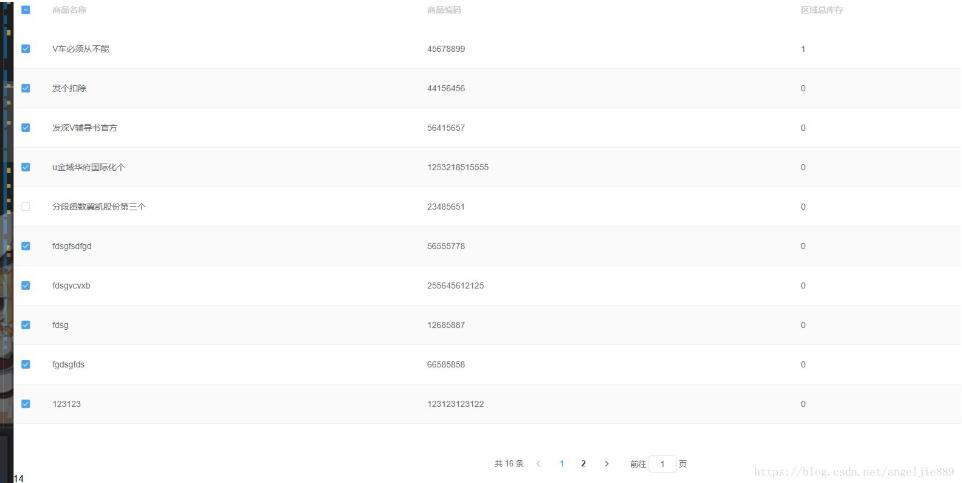
接下来提供可直接使用的代码示例,使用前请确保已配置好相关运行环境。
HTML 模板结构
以下是 HTML 模板部分的代码结构。
表格组件配置
<!--table组件需要使用ref="table"-->
<template>
 <div>
 <el-table :data="tableData" ref="table" stripe style="width: 100%" @selection-change="handleSelectionChange">
  <el-table-column type="selection" width="55"></el-table-column>
  <el-table-column prop="name" label="商品名称"></el-table-column>
  <el-table-column prop="barcode" label="商品编码"></el-table-column>
  <el-table-column prop="quantity" label="区域总库存"></el-table-column>
 </el-table>
 <div class="block" v-show="page.pageTotal>10">
  <el-pagination @current-change="handleCurrentChange" :current-page.sync="page.currentPage" :page-size="page.pnum" layout="total, prev, pager, next , jumper" :total="page.pageTotal">
  </el-pagination>
 </div>
 <div>
  {{multipleSelectionAll.length}}
 </div>
 </div>
</template>
JavaScript 逻辑实现
接着是 JavaScript 逻辑部分的实现代码。
数据与方法定义
export default {
 data(){
  return {
  tableData: [], // 表格数据
  multipleSelectionAll:[],//所有选中的数据包含跨页数据
  multipleSelection:[],// 当前页选中的数据
  idKey: 'barcode', // 标识列表数据中每一行的唯一键的名称
  page:{
   //每页数据量
   pnum:10,
   //数据总数
   pageTotal:0,
   //当前页,从1开始
   currentPage:1,
  }
  }
 },
 methods: {
  handleCurrentChange(){
  this.changePageCoreRecordData();
  if(!this.$isNull(this.page.pageTotal)) this.getGoodsList();
  },
  handleSelectionChange (val) {
  this.multipleSelection = val;
  //实时记录选中的数据
  setTimeout(()=>{
   this.changePageCoreRecordData();
  }, 50)
  },
  setSelectRow() {
  if (!this.multipleSelectionAll || this.multipleSelectionAll.length <= 0) {
   return;
  }
  // 标识当前行的唯一键的名称
  let idKey = this.idKey;
  let selectAllIds = [];
  let that = this;
  this.multipleSelectionAll.forEach(row=>{
   selectAllIds.push(row[idKey]);
  })
  this.$refs.table.clearSelection();
  for(var i = 0; i < this.tableData.length; i++) {
   if (selectAllIds.indexOf(this.tableData[i][idKey]) >= 0) {
   // 设置选中,记住table组件需要使用ref="table"
   this.$refs.table.toggleRowSelection(this.tableData[i], true);
   }
  }
  },
  // 记忆选择核心方法
  changePageCoreRecordData () {
  // 标识当前行的唯一键的名称
  let idKey = this.idKey;
  let that = this;
  // 如果总记忆中还没有选择的数据,那么就直接取当前页选中的数据,不需要后面一系列计算
  if (this.multipleSelectionAll.length <= 0) {
   this.multipleSelectionAll = this.multipleSelection;
   return;
  }
  // 总选择里面的key集合
  let selectAllIds = [];
  this.multipleSelectionAll.forEach(row=>{
   selectAllIds.push(row[idKey]);
  })
  let selectIds = []
  // 获取当前页选中的id
  this.multipleSelection.forEach(row=>{
   selectIds.push(row[idKey]);
   // 如果总选择里面不包含当前页选中的数据,那么就加入到总选择集合里
   if (selectAllIds.indexOf(row[idKey]) < 0) {
   that.multipleSelectionAll.push(row);
   }
  })
  let noSelectIds = [];
  // 得到当前页没有选中的id
  this.tableData.forEach(row=>{
   if (selectIds.indexOf(row[idKey]) < 0) {
   noSelectIds.push(row[idKey]);
   }
  })
  noSelectIds.forEach(id=>{
   if (selectAllIds.indexOf(id) >= 0) {
   for(let i = 0; i< that.multipleSelectionAll.length; i ++) {
    if (that.multipleSelectionAll[i][idKey] == id) {
    // 如果总选择中有未被选中的,那么就删除这条
    that.multipleSelectionAll.splice(i, 1);
    break;
    }
   }
   }
  })
  },
  //请求接口部分
  getGoodsList(){
  let data = {};
  data['page'] = this.page.currentPage;
  data['pnum'] = this.page.pnum;
  this.$ajax({
   url:'goods/list',
   data:data
  }).then(val => {
   this.tableData = val.data.rows ? val.data.rows : [];
   this.page = {
   pnum:10,
   pageTotal:val.data.total,
   currentPage:val.data.page,
   };
   setTimeout(()=>{
   this.setSelectRow();
   }, 50)
  })
  }
 },
 created () {
  this.getGoodsList()
 }
 }
上述代码可以直接粘贴到项目中运行,经过实际测试可用,代码逻辑简单直观。
以上关于 Element UI 分页多选及翻页记忆的实例内容分享完毕,希望能为读者提供参考,欢迎继续支持本站获取更多技术分享。
作者最新文章
怎么在 Vue 3 和 React 项目中封装使用 Quill.js 编辑器
2026-11-02 10:28:27
Vue 和 React 项目中集成 qrcode.js 的注意事项
2026-11-02 10:28:19
Vue3实现多内容滑动轮播组件完整代码示例
2026-10-31 20:20:59
Element Plus 中 mt-x 类的使用与卡片间距调整
2026-10-31 16:50:52
前端qrcode生成二维码安装及使用示例详解
2026-10-31 15:22:14