

基于Canvas实现图片旋转与鼠标滚轮缩放
本文介绍如何使用HTML5 Canvas结合JavaScript实现图片的旋转、放大和缩小功能。核心在于监听鼠标事件控制画布状态,确保图片加载完成后执行绘制逻辑,并通过DOM操作显示旋转控制栏,实现90度步进旋转及缩放交互。
开通博客园至今已逾两月,回顾过往未记录技术实践的经历,深感遗憾。
现计划以博客形式逐步整理已实现的功能,既供同行交流参考,亦便于自我复盘巩固。
Canvas实现原理与注意事项
本案例中的图片缩放与旋转功能,基于HTML5 Canvas画布技术实现,其核心逻辑在于通过JavaScript精确控制鼠标状态及相关事件。
首先展示最终实现的效果演示。
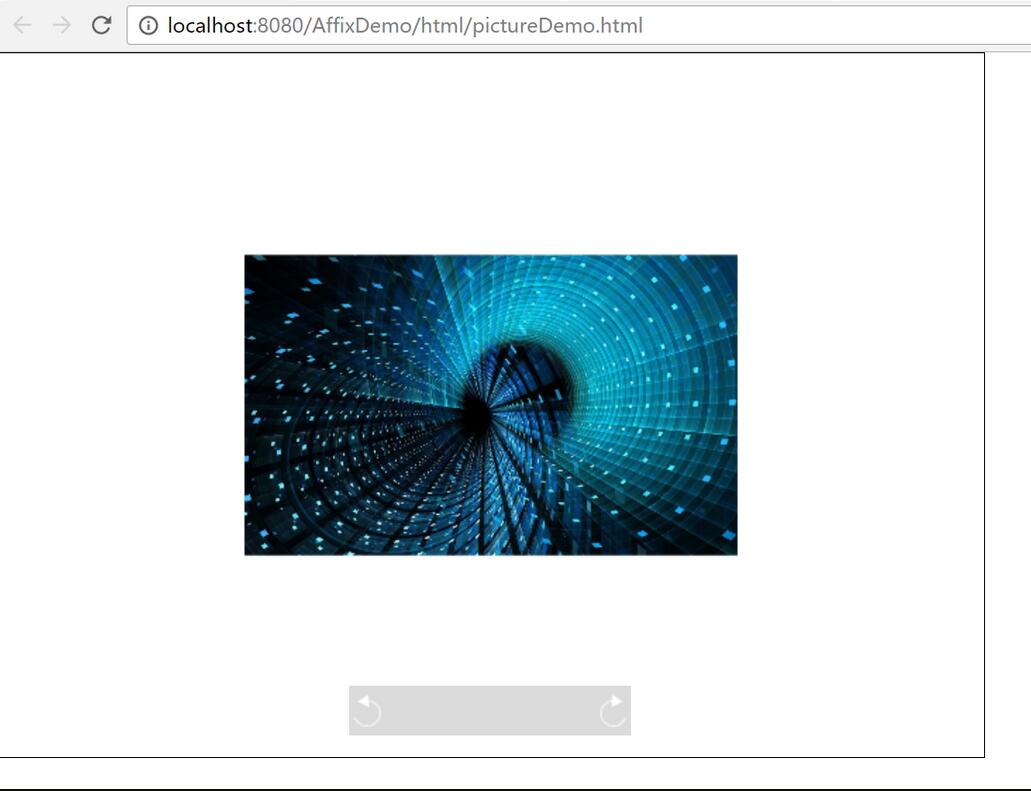
当鼠标移入画布区域时,底部操作栏将自动显现,支持每次以90度为单位进行旋转操作。
在引入JavaScript文件时需注意,由于Canvas绘制依赖于图片资源的加载,必须确保图片完全加载后再执行画布内的渲染逻辑,因此JS脚本应置于HTML文档末尾引入。
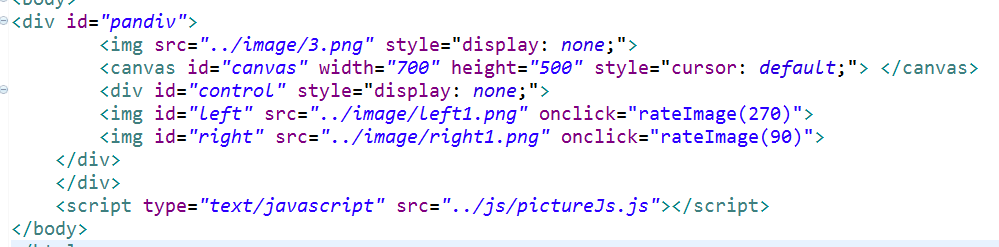
在JavaScript代码中,需确保在图片加载完成的事件回调中再调用相关绘制方法。
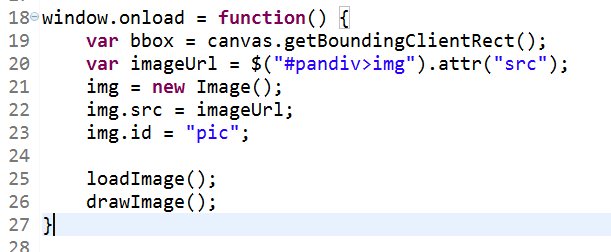
上述逻辑为关键实现点,其余部分为常规JS方法实现,具备JavaScript基础者可自行查阅。若存在疑问或改进建议,欢迎在评论区留言,共同交流探讨。
下文将提供完整代码示例,如需演示项目源码,可在评论区留言,我将统一发送。
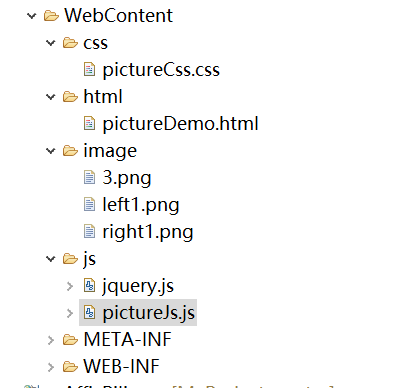
以下为项目目录结构说明,该实现无需引入额外的JAR包依赖,image目录下存放相关图片资源。
HTML页面结构代码如下:
HTML结构与CSS样式
<!DOCTYPE html>
<html>
<head>
<meta charset="UTF-8">
<title>Insert title here</title>
<script type="text/javascript" src="../js/jquery.js"></script>
<link rel="stylesheet" type="text/css" href="../css/pictureCss.css" rel="external nofollow" />
<link >
</head>
<body>
<div id="pandiv">
  <img src="../image/3.png" style="display: none;">
  <canvas id="canvas" width="700" height="500" style="cursor: default;"> </canvas>
  <div id="control" style="display: none;">
  <img id="left" src="../image/left1.png" onclick="rateImage(270)">
  <img id="right" src="../image/right1.png" onclick="rateImage(90)">
 </div>
 </div>
 <script type="text/javascript" src="../js/pictureJs.js"></script>
</body>
</html>
CSS样式定义代码如下:
@CHARSET "UTF-8";

* {
 margin: 0px;
 padding: 0px;
}

#pandiv {
 width: 700px;
 height: 500px;
}

#control {
 background: #ccc;
 opacity: 0.7;
 width: 200px;
 height: 30px;
 display: none;
 padding-top: 5px;
 position: absolute;
 left: 250px;
 top: 450px;
}

#canvas {
 border: 1px solid black;
}

#left {
 float: left;
 display: block;
}

#right {
 float: right;
 display: block;
}
核心JavaScript逻辑代码如下:
核心JavaScript逻辑
/**
 *
 */
var canvas = document.getElementById("canvas");
var pandiv = document.getElementById("pandiv");
var cxt = canvas.getContext("2d");
var control = document.getElementById("control");
var imgScale = 1;
var img;
var imgX = 0;
var imgY = 0;
var currentRate = 0;
/**当前的旋转角度*/
var mouseDownLocation;
var isMouseDown = false;

window.onload = function() {
 var bbox = canvas.getBoundingClientRect();
 var imageUrl = $("#pandiv>img").attr("src");
 img = new Image();
 img.src = imageUrl;
 img.id = "pic";

 loadImage();
 drawImage();
}

function reLoadImage() {
 loadImage();
}
function loadImage() {
 if (img.width <= canvas.width && img.height <= canvas.height) {
  imgX = (canvas.width - img.width * imgScale) / 2
  imgY = (canvas.height - img.height * imgScale) / 2;
 } else {
  var ratio = img.width / img.height;
  widthTime = img.width / canvas.width;
  heightTime = img.height / canvas.height;

  if (widthTime > heightTime) {
   img.width = canvas.width;

   img.height = canvas.width / ratio;
  } else {
   img.height = canvas.height;
   img.width = canvas.height * ratio;

  }

  imgX = (canvas.width - img.width * imgScale) / 2
  imgY = (canvas.height - img.height * imgScale) / 2
 }
}

//var backGroundColor = ['#223344', '#445566', '#667788', '#778899'];
//var backGroundColorIndex = 0;
function drawImage() {

 var bbox = canvas.getBoundingClientRect();

 //cxt.clearRect(0, 0, canvas.width, canvas.height);
 cxt.clearRect(-200, -200, canvas.width * 2, canvas.height * 2);

 // cxt.fillStyle = backGroundColor[backGroundColorIndex++ % backGroundColor.length];
 //cxt.fillRect(0, 0, canvas.width, canvas.height);

 cxt.drawImage(img, imgX, imgY, img.width * imgScale, img.height * imgScale);
}

// windowToCanvas此方法用于鼠标所在点的坐标切换到画布上的坐标
function windowToCanvas(canvas, x, y) {
 var bbox = canvas.getBoundingClientRect();
 return {
  x : x - bbox.left - (bbox.width - canvas.width) / 2,
  y : y - bbox.top - (bbox.height - canvas.height) / 2
 };
}

function isPointInImageArea(point) {
 return true;
 //return (point.x > imgX && point.x < imgX + img.width * imgScale &&
 //point.y > imgY && point.y < imgY + img.height * imgScale);
}
function isPointInCanvasArea(point) {
 return true;
 //var bbox = canvas.getBoundingClientRect();
 //return (point.x > bbox.left && point.x < bbox.right && point.y > bbox.//top && point.y < bbox.bottom);
}
function isDivArea(point) {
 return true;
 //var bbox =pandiv.getBoundingClientRect();
 //return (point.x > bbox.left && point.x < bbox.right && point.y > bbox.//top && point.y < bbox.bottom);
}

canvas.onmousewheel = canvas.onwheel = function(event) {

 var pos = windowToCanvas(canvas, event.clientX, event.clientY);
 event.wheelDelta = event.wheelDelta ? event.wheelDelta
   : (event.deltaY * (-40));

 if (event.wheelDelta > 0) {
  //alert("放大");
  if (isPointInImageArea(pos)) {
   imgScale *= 2;
   //imgX = imgX * 2 - pos.x;
   // imgY = imgY * 2 - pos.y;
   imgX = (canvas.width - img.width * imgScale) / 2
   imgY = (canvas.height - img.height * imgScale) / 2
  } else {
   imgScale *= 2;
   //imgX = (canvas.width - img.width * imgScale) / 2;
   //imgY = (canvas.height - img.height * imgScale) / 2;
   imgX = (canvas.width - img.width * imgScale) / 2
   imgY = (canvas.height - img.height * imgScale) / 2
  }
 } else {
  //alert("缩小");
  if (isPointInImageArea(pos)) {
   imgScale /= 2;
   //imgX = imgX * 0.5 + pos.x * 0.5;
   // imgY = imgY * 0.5 + pos.y * 0.5;
   imgX = (canvas.width - img.width * imgScale) / 2
   imgY = (canvas.height - img.height * imgScale) / 2
  } else {
   imgScale /= 2;
   // imgX = (canvas.width - img.width * imgScale) / 2;
   // imgY = (canvas.height - img.height * imgScale) / 2;
   imgX = (canvas.width - img.width * imgScale) / 2
   imgY = (canvas.height - img.height * imgScale) / 2
  }
 }

 drawImage();

 return false;
}

/**旋转angle度*/
function rateImage(angle) {
 currentRate = (currentRate + angle) % 360;

 cxt.clearRect(0, 0, canvas.width, canvas.height);
 //cxt.save();
 cxt.translate(canvas.width / 2, canvas.height / 2);
 cxt.save();
 cxt.rotate(angle * Math.PI / 180);
 cxt.translate(-canvas.width / 2, -canvas.height / 2);
 imgScale = 1;
 reLoadImage();

 drawImage();
 //cxt.restore();
}

/**鼠标按下*/
pandiv.onmousedown = function(event) {
 mouseDownLocation = windowToCanvas(canvas, event.clientX, event.clientY);
 if (isPointInImageArea(mouseDownLocation)) {
  isMouseDown = true;
  document.title = 'mouse down';
 }
}
/**鼠标弹起*/
document.body.onmouseup = function() {
 isMouseDown = false;
 canvas.style.cursor = "default";
 document.title = 'mouse up';
}
/**鼠标移动*/
pandiv.onmousemove = function(event) {
 if (isMouseDown) {
  canvas.style.cursor = "move";
  var newMouseLocation = windowToCanvas(canvas, event.clientX,
    event.clientY);
  if (isDivArea({
   x : event.clientX,
   y : event.clientY
  })) {
   var x = newMouseLocation.x - mouseDownLocation.x;
   var y = newMouseLocation.y - mouseDownLocation.y;
   mouseDownLocation = newMouseLocation;
   /**根据角度,计算图片偏移*/
   if (0 == currentRate) {
    imgX += x;
    imgY += y;
   } else if (90 == currentRate) {
    imgX += y;
    imgY -= x;
   } else if (180 == currentRate) {
    imgX -= x;
    imgY -= y;
   } else if (270 == currentRate) {
    imgX -= y;
    imgY += x;
   }
  } else {
   /** 鼠标移动至画布范围外,置鼠标弹起 */
   isMouseDown = false;
   canvas.style.cursor = "default";
   document.title = 'mouse up';
  }
  drawImage();
 }
}
pandiv.onmouseover = function() {
 //alert("1");
 control.style.display = "block";

}
canvas.onmouseout = function() {
 //alert("1");
 control.style.display = "none";
}
以上即为实现图片旋转、放大及缩小功能的完整演示代码。
后续功能规划
近期正在开发图片切换功能,通过点击“上一页”和“下一页”实现图片轮播,该功能已接近完成。后续将搭建一个包含图片切换、旋转及缩放功能的综合框架演示项目,供读者参考。
本文内容至此结束,希望能为读者的学习带来帮助,也欢迎大家继续支持本站。
anime.js 快速入门:怎么引入库并编写第一个 DOM 动画
2026-11-05 14:22:43
在线JS解密后变量名仍乱码?结合浏览器DevTools调试还原
2026-11-04 20:26:01
怎么在浏览器中运行JavaScript代码并查看输出结果
2026-11-04 09:07:33
JS 获取屏幕分辨率:window.screen.width 与 height 用法
2026-11-04 08:52:48
为什么推荐用DOMContentLoaded代替window.onload初始化JS
2026-11-04 08:42:33