
JS前端图片最优化压缩方案:Canvas压缩原理与性能优化
本文深入解析前端图片压缩原理,通过Canvas的toDataURL方法分析quality参数对文件体积的影响。实践表明默认0.92质量可能导致体积增大,建议将quality调整至0.2-0.5区间以平衡画质与体积。此外,针对大尺寸图片进行等比缩放可显著提升压缩效率,并提供TypeScript版本的优化实现方案。
前言
在Web开发中,上传图像、视频或文件是常见需求。若上传的文件体积过大,将直接导致加载缓慢,严重影响用户操作体验。因此,在前端环节对图片进行适当的压缩处理,是提升系统响应速度和用户体验的关键措施。
特别是在后台管理系统中,图片压缩不仅关乎管理员的操作流畅度,更能有效防止因后台上传过大尺寸图片而导致前台页面加载耗时过长的问题,从而保障整体用户体验的一致性。
压缩图片思考
压缩图片基本流程
- 通过input标签读取文件,利用FileReader对象将其转换为base64编码格式。
- 创建一个新的img元素,并将其src属性指向上一步生成的base64数据。
- 实例化一个canvas元素,并将上述img绘制到canvas画布上。
- 利用canvas的toDataURL或toBlob方法,将画布内容导出为base64字符串或Blob对象。
- 最后将导出的base64或Blob转换为File对象。拆解上述步骤,核心在于canvas.toDataURL时的质量参数设置,我们将重点分析该环节。
准备
HTMLCanvasElement.toDataURL()
HTMLCanvasElement.toDataURL()方法用于返回包含图片展示的data URI。可通过type参数指定图片类型,默认为PNG格式,图片分辨率为96dpi。
- 若画布的高度或宽度为0,该方法将返回字符串“data:,”。
- 若传入的type参数非“image/png”,但返回值以“data:image/png”开头,则说明该传入类型不被支持。
语法
canvas.toDataURL(type, encoderOptions);
参数
- type:可选参数,指定图片格式,默认为image/png。
- encoderOptions:可选参数,当指定图片格式为image/jpeg或image/webp时,该参数用于指定图片质量,取值范围从0到1。若超出范围,将使用默认值0.92,其他参数将被忽略。Chrome浏览器支持“image/webp”类型。
猜想
可能toDataURL(type,quality)的第二个参数(quality)越小,文件体积越小。
实践
先查看原图信息,其大小是7.31kb。
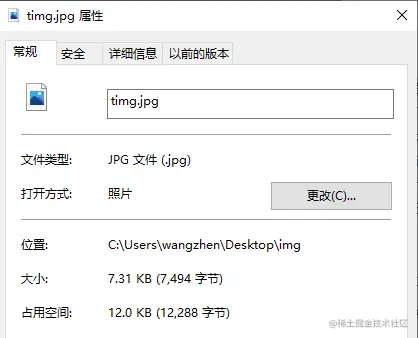
调用toDataURL(type,quality),设置quality为默认值0.92,观察压缩结果。
<input id="fileInput" type="file" />
<img id="img" src="" alt="">
let fileId = document.getElementById('fileInput')
let img = document.getElementById('img')
fileId.onchange = function (e) {
  let file = e.target.files[0]
  compressImg(file, 0.92).then(res => {//compressImg方法见附录
    console.log(res)
    img.src = window.URL.createObjectURL(res.file);
  })
}
compressImg方法见附录
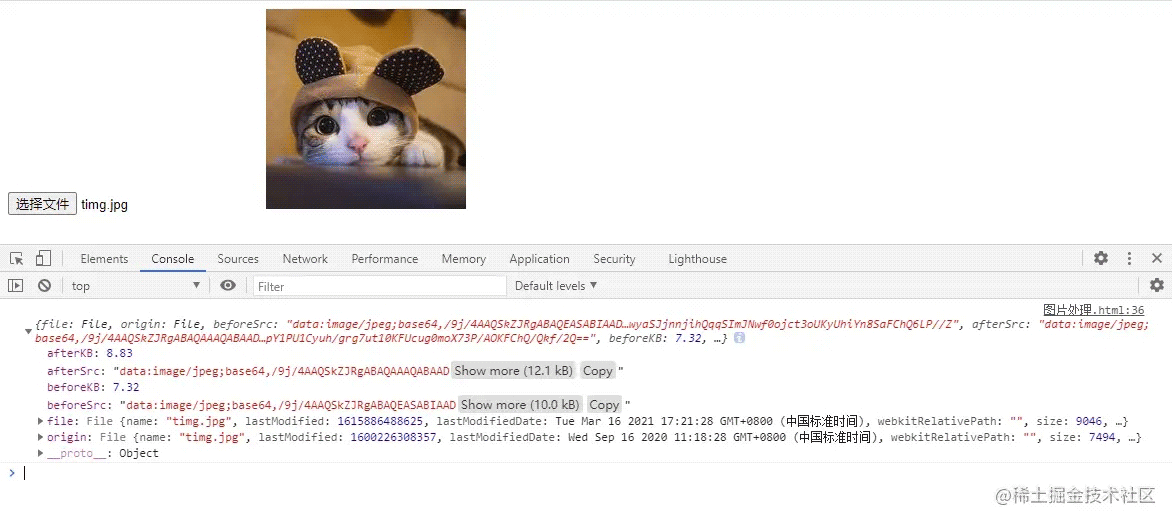
结果显示图片大小为8.83kb,压缩后图片反而变大了,这是怎么回事?
看来起初的猜想不完全正确,咱们继续看看。
fileId.onchange = function (e) {
  let file = e.target.files[0]
  compressImg(file, 0.1).then(res => {//compressImg方法见附录
    console.log(res)
    img.src = window.URL.createObjectURL(res.file);
  })
}
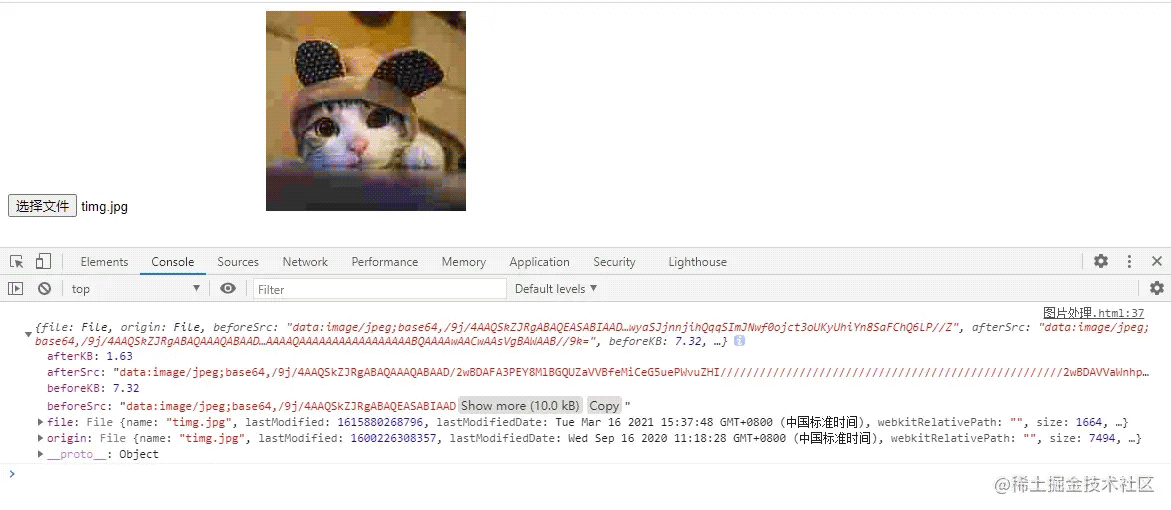
当quality为0.1的时候,图片仅有1.63kb,但同样的质量也下降了。
继续......A long time later
咱们用折线图来看吧更直观。
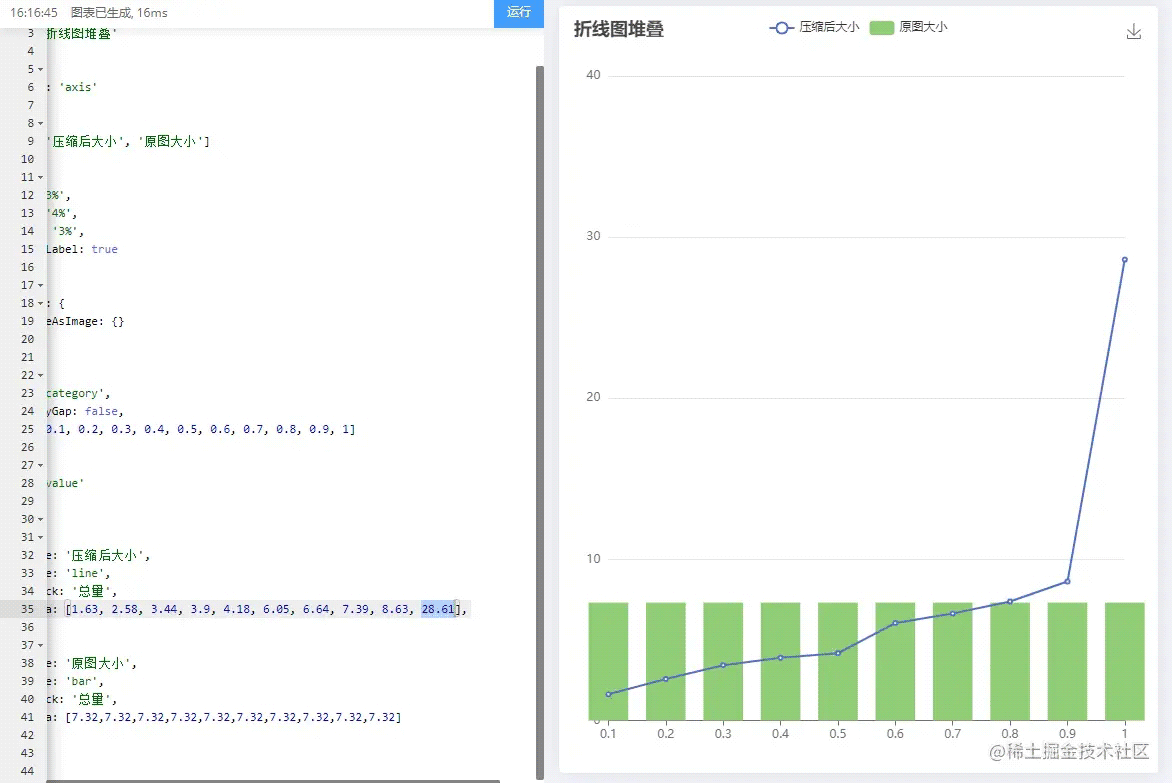
我又拿了几个图片让他们使用默认值0.92,结果都比原图大。
所以说默认值得到的图片往往比原图大。
下面看看当quality为多少时对图片的压缩效率可以最大化。
压缩效率最大化,即:在不影响图片质量的情况下最大化压缩。尝试了一系列的图片之后我发现,当quality在0.2~0.5之间,图片质量变化并不大,quality的值越小,压缩效率越可观(也就是在0.2左右时,压缩图片可以最大化,同时并不对图片质量造成太大影响)。
结论
经过实践,可以得出结论这个默认值得到的图片往往比原图的图片质量要高。
当quality在0.2~0.5之间,图片质量变化并不大,quality的值越小,压缩效率越可观(也就是在0.2左右时,压缩图片可以最大化,同时并不对图片质量造成太大影响)。
附录
/**
 * 压缩方法
 * @param {string} file 文件
 * @param {Number} quality  0~1之间
*/
function compressImg(file, quality) {
  if (file[0]) {
    return Promise.all(Array.from(file).map(e => compressImg(e,
      quality))) // 如果是 file 数组返回 Promise 数组
  } else {
    return new Promise((resolve) => {
      const reader = new FileReader() // 创建 FileReader
      reader.onload = ({
        target: {
          result: src
        }
      }) => {
        const image = new Image() // 创建 img 元素
        image.onload = async () => {
          const canvas = document.createElement('canvas') // 创建 canvas 元素
          canvas.width = image.width
          canvas.height = image.height
          canvas.getContext('2d').drawImage(image, 0, 0, image.width, image.height) // 绘制 canvas
          const canvasURL = canvas.toDataURL('image/jpeg', quality)
          const buffer = atob(canvasURL.split(',')[1])
          let length = buffer.length
          const bufferArray = new Uint8Array(new ArrayBuffer(length))
          while (length--) {
            bufferArray[length] = buffer.charCodeAt(length)
          }
          const miniFile = new File([bufferArray], file.name, {
            type: 'image/jpeg'
          })
          resolve({
            file: miniFile,
            origin: file,
            beforeSrc: src,
            afterSrc: canvasURL,
            beforeKB: Number((file.size / 1024).toFixed(2)),
            afterKB: Number((miniFile.size / 1024).toFixed(2))
          })
        }
        image.src = src
      }
      reader.readAsDataURL(file)
    })
  }
}
优化升级
使用过程中发现边界问题,即图片尺寸过大、IOS尺寸限制,png透明图变黑等问题。
所以优化了大尺寸图片等比例缩小,这极大的提高了压缩效率。
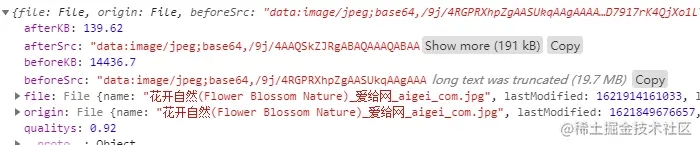
举个栗子,以一张大小14M,尺寸6016X4016的图片为例。
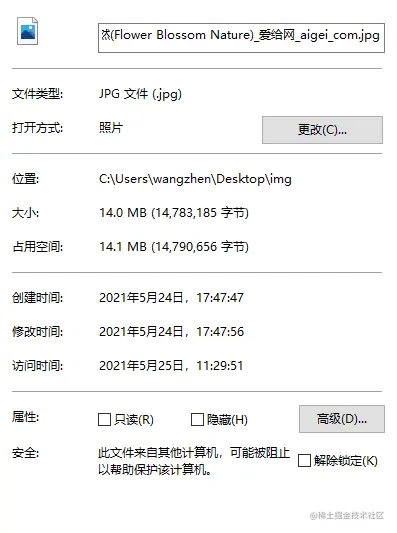
一个14M的原图(6016X4016)不改变质量只改变尺寸的前提下压缩后(1400X935)就剩139.62KB。
可想而知,尺寸的限制能最大化提高压缩效率。
  /**
   * 压缩图片方法
   * @param {file} file 文件
   * @param {Number} quality 图片质量(取值0-1之间默认0.92)
   */
  compressImg(file, quality) {
    var qualitys = 0.52
    console.log(parseInt((file.size / 1024).toFixed(2)))
    if (parseInt((file.size / 1024).toFixed(2)) < 1024) {
      qualitys = 0.85
    }
    if (5 * 1024 < parseInt((file.size / 1024).toFixed(2))) {
      qualitys = 0.92
    }
    if (quality) {
      qualitys = quality
    }
    if (file[0]) {
      return Promise.all(Array.from(file).map(e => this.compressImg(e,
        qualitys))) // 如果是 file 数组返回 Promise 数组
    } else {
      return new Promise((resolve) => {
        console.log(file)
        if ((file.size / 1024).toFixed(2) < 300) {
          resolve({
            file: file
          })
        } else {
          const reader = new FileReader() // 创建 FileReader
          reader.onload = ({
            target: {
              result: src
            }
          }) => {
            const image = new Image() // 创建 img 元素
            image.onload = async() => {
              const canvas = document.createElement('canvas') // 创建 canvas 元素
              const context = canvas.getContext('2d')
              var targetWidth = image.width
              var targetHeight = image.height
              var originWidth = image.width
              var originHeight = image.height
              if (1 * 1024 <= parseInt((file.size / 1024).toFixed(2)) && parseInt((file.size / 1024).toFixed(2)) <= 10 * 1024) {
                var maxWidth = 1600
                var maxHeight = 1600
                targetWidth = originWidth
                targetHeight = originHeight
                // 图片尺寸超过的限制
                if (originWidth > maxWidth || originHeight > maxHeight) {
                  if (originWidth / originHeight > maxWidth / maxHeight) {
                    // 更宽,按照宽度限定尺寸
                    targetWidth = maxWidth
                    targetHeight = Math.round(maxWidth * (originHeight / originWidth))
                  } else {
                    targetHeight = maxHeight
                    targetWidth = Math.round(maxHeight * (originWidth / originHeight))
                  }
                }
              }
              if (10 * 1024 <= parseInt((file.size / 1024).toFixed(2)) && parseInt((file.size / 1024).toFixed(2)) <= 20 * 1024) {
                maxWidth = 1400
                maxHeight = 1400
                targetWidth = originWidth
                targetHeight = originHeight
                // 图片尺寸超过的限制
                if (originWidth > maxWidth || originHeight > maxHeight) {
                  if (originWidth / originHeight > maxWidth / maxHeight) {
                    // 更宽,按照宽度限定尺寸
                    targetWidth = maxWidth
                    targetHeight = Math.round(maxWidth * (originHeight / originWidth))
                  } else {
                    targetHeight = maxHeight
                    targetWidth = Math.round(maxHeight * (originWidth / originHeight))
                  }
                }
              }
              canvas.width = targetWidth
              canvas.height = targetHeight
              context.clearRect(0, 0, targetWidth, targetHeight)
              context.drawImage(image, 0, 0, targetWidth, targetHeight) // 绘制 canvas
              const canvasURL = canvas.toDataURL('image/jpeg', qualitys)
              const buffer = atob(canvasURL.split(',')[1])
              let length = buffer.length
              const bufferArray = new Uint8Array(new ArrayBuffer(length))
              while (length--) {
                bufferArray[length] = buffer.charCodeAt(length)
              }
              const miniFile = new File([bufferArray], file.name, {
                type: 'image/jpeg'
              })
              console.log({
                file: miniFile,
                origin: file,
                beforeSrc: src,
                afterSrc: canvasURL,
                beforeKB: Number((file.size / 1024).toFixed(2)),
                afterKB: Number((miniFile.size / 1024).toFixed(2)),
                qualitys: qualitys
              })
              resolve({
                file: miniFile,
                origin: file,
                beforeSrc: src,
                afterSrc: canvasURL,
                beforeKB: Number((file.size / 1024).toFixed(2)),
                afterKB: Number((miniFile.size / 1024).toFixed(2))
              })
            }
            image.src = src
          }
          reader.readAsDataURL(file)
        }
      })
    }
  },
优化升级 TS新写法
最近很多小伙伴在问我有没有TS版本的,今天刚好弄了下这一块,稍微调整了下,相较于之前更加简洁,性能也快了不少;
如果需要对尺寸压缩,请自行添加尺寸处理方法,也很简单,自行添加吧,方法写的很简洁明了了,就不多加赘述了,大家自取吧。
const fileToDataURL = (file: Blob): Promise<any> => {
  return new Promise((resolve) => {
    const reader = new FileReader()
    reader.onloadend = (e) => resolve((e.target as FileReader).result)
    reader.readAsDataURL(file)
  })
}
const dataURLToImage = (dataURL: string): Promise<HTMLImageElement> => {
  return new Promise((resolve) => {
    const img = new Image()
    img.onload = () => resolve(img)
    img.src = dataURL
  })
}
const canvastoFile = (canvas: HTMLCanvasElement, type: string, quality: number): Promise<Blob | null> => {
  return new Promise((resolve) => canvas.toBlob((blob) => resolve(blob), type, quality))
}
/**
 * 图片压缩方法
 * @param {Object}  file 图片文件
 * @param {String} type 想压缩成的文件类型
 * @param {Nubmber} quality 压缩质量参数
 * @returns 压缩后的新图片
 */
export const compressionFile = async(file, type = 'image/jpeg', quality = 0.5) => {
  const fileName = file.name
  const canvas = document.createElement('canvas')
  const context = canvas.getContext('2d') as CanvasRenderingContext2D
  const base64 = await fileToDataURL(file)
  const img = await dataURLToImage(base64)
  canvas.width = img.width
  canvas.height = img.height
  context.clearRect(0, 0, img.width, img.height)
  context.drawImage(img, 0, 0, img.width, img.height)
  const blob = (await canvastoFile(canvas, type, quality)) as Blob // quality:0.5可根据实际情况计算
  const newFile = await new File([blob], fileName, {
    type: type
  })
  return newFile
}
以上就是JS前端图片最优化压缩方案的详细内容,更多关于JS前端图片压缩的资料请关注本站其它相关文章!
JS reduce实战:数组去重、扁平化与分组统计
2026-11-05 13:05:36
JS代码怎么在线压缩?新手操作指南与工具推荐
2026-11-04 18:07:25
fflate 与 pako.js 性能对比:JS 解压库怎么选
2026-11-03 22:54:05
JS DOM查询性能优化:缓存引用与减少重排重绘
2026-11-03 22:48:27
在线运行JavaScript代码时的沙箱限制与跨域问题
2026-11-03 22:29:33