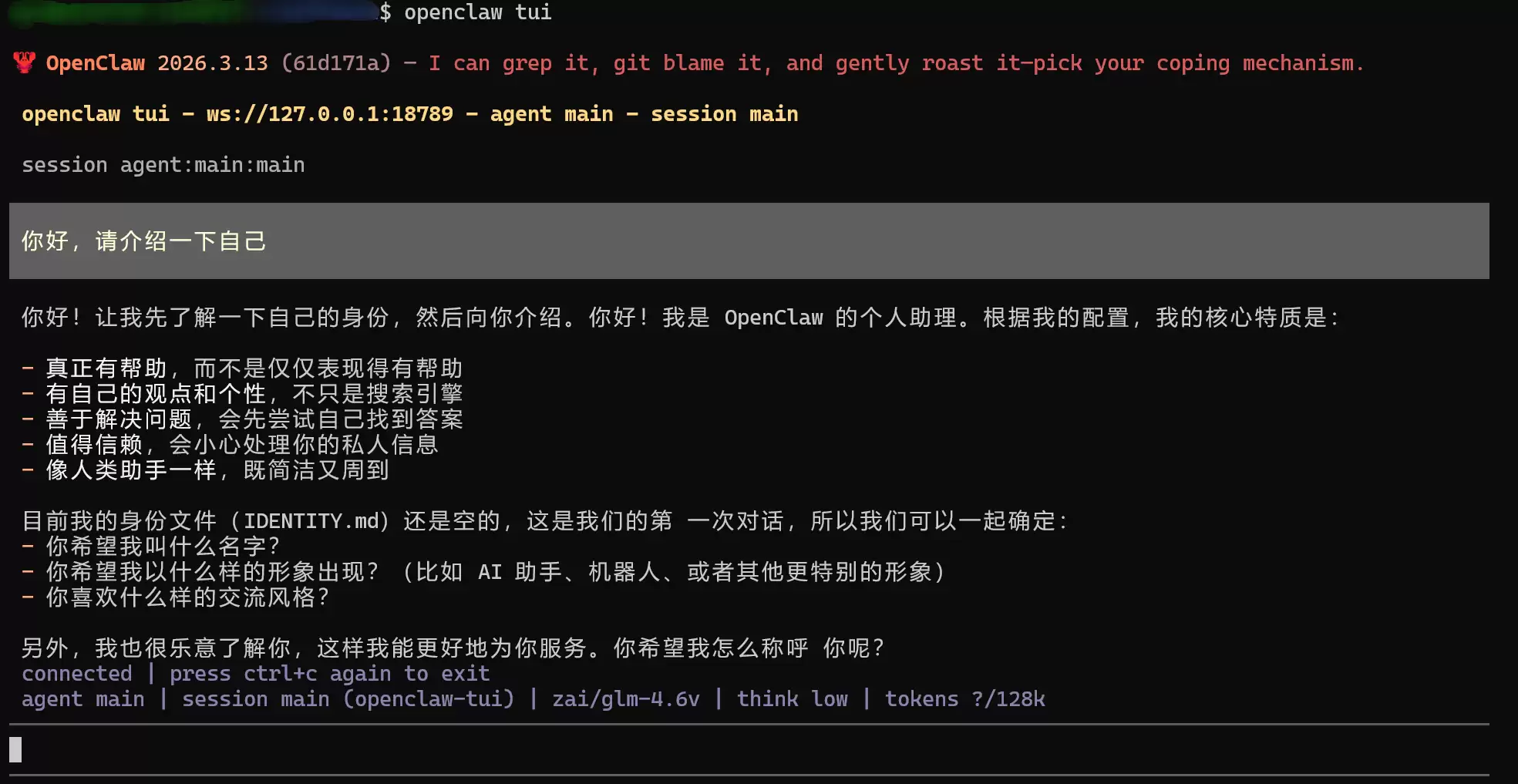

Windows使用WSL2安装OpenClaw详细教程
安装wsl2 首先需要以管理员身份打开PowerShell,核心操作其实就两条命令: wsl --update wsl --install # 这条命令会自动完成Ubuntu的下载和配置 不过有时候事情没那么顺利——如果遇到错误提示"Error code: Wsl/InstallDistro/0x8
安装wsl2
首先需要以管理员身份打开PowerShell,核心操作其实就两条命令:
wsl --update
wsl --install # 这条命令会自动完成Ubuntu的下载和配置
不过有时候事情没那么顺利——如果遇到错误提示"Error code: Wsl/InstallDistro/0x80072efe",或者系统告诉你"This update only applies to machines with the Windows Subsytem for Linux",别着急,这时候需要手动开启几个功能:
# 强制开启WSL功能
dism.exe /online /enable-feature /featurename:Microsoft-Windows-Subsystem-Linux /all /force /norestart
# 强制开启虚拟机平台
dism.exe /online /enable-feature /featurename:VirtualMachinePlatform /all /force /norestart
# 开启Hyper-V(这是Win11家庭版的隐藏功能,需要用命令解锁)
dism.exe /online /enable-feature /featurename:HypervisorPlatform /all /norestart
执行完这些命令后,记得重启电脑,然后重新尝试安装wsl。
wsl2中安装openclaw
详细参考文档:https://datawhalechina.github.io/hello-claw/cn/adopt/chapter2/
启动Ubuntu终端,输入这条安装命令:
curl -fsSL https://openclaw.ai/install.sh | bash正常情况下,你只需要耐心等待安装过程完成。顺利的话,终端会显示类似下面的输出,这就说明安装进展正常:
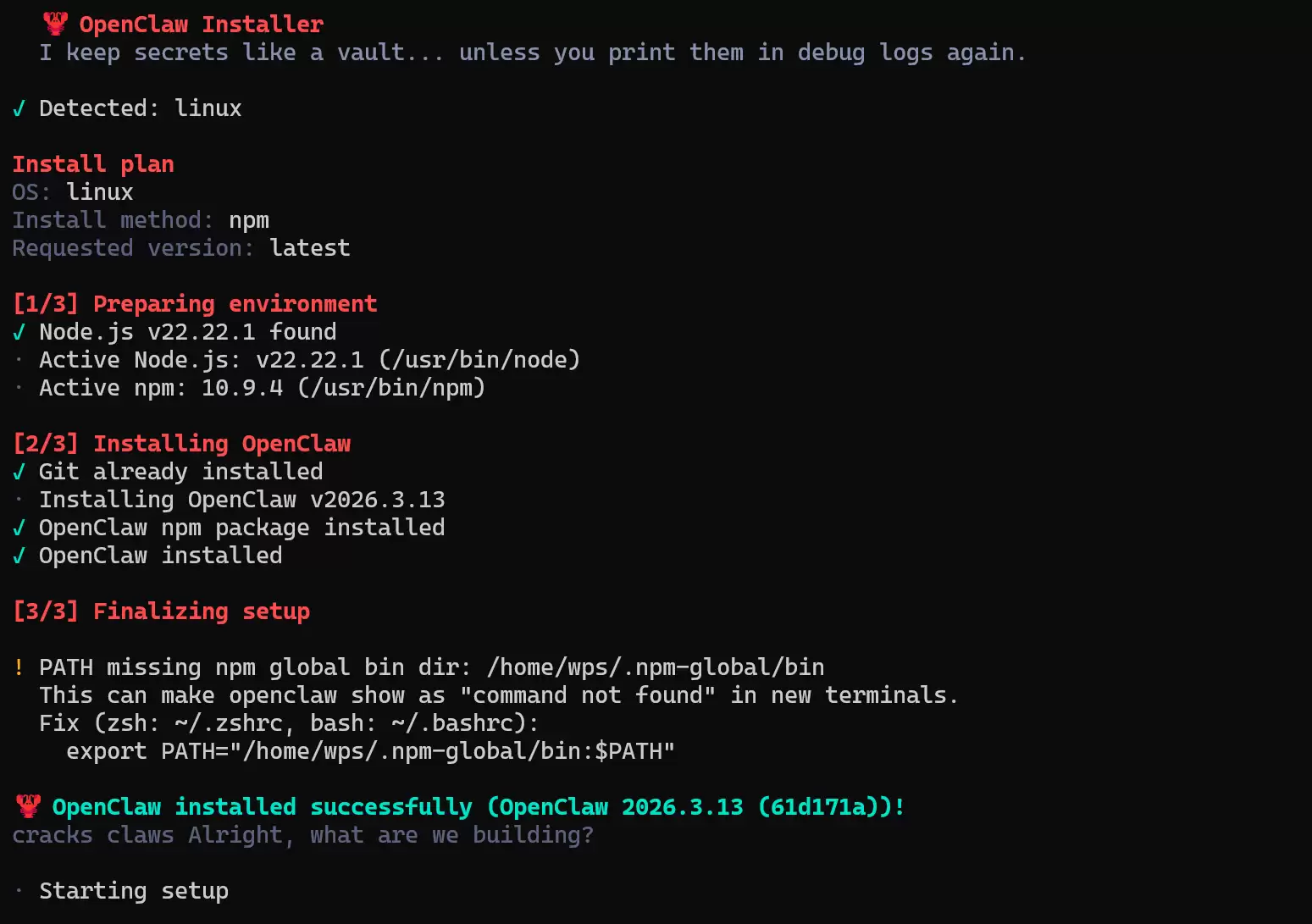
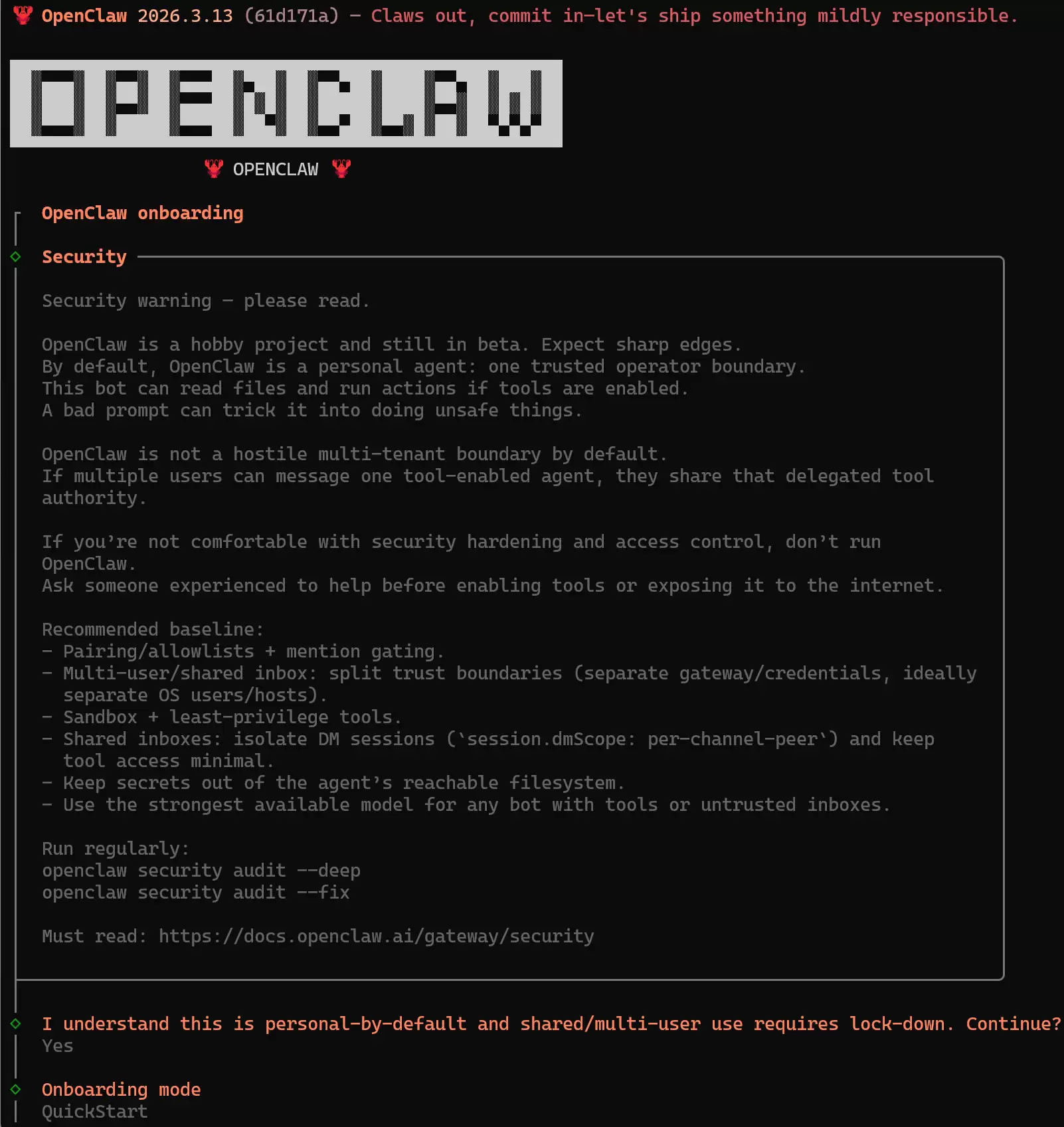
接下来按照安装向导的提示进行设置就行,具体细节可以参考上面提供的文档链接。
不过安装过程中可能会在某些步骤卡住,比如在"Configuring npm for user-local installs"或者"Installing OpenClaw v2026.3.13"阶段。这种情况多半是网络连接问题导致的,可以尝试设置国内镜像源:
npm config set registry https://registry.npmmirror.com
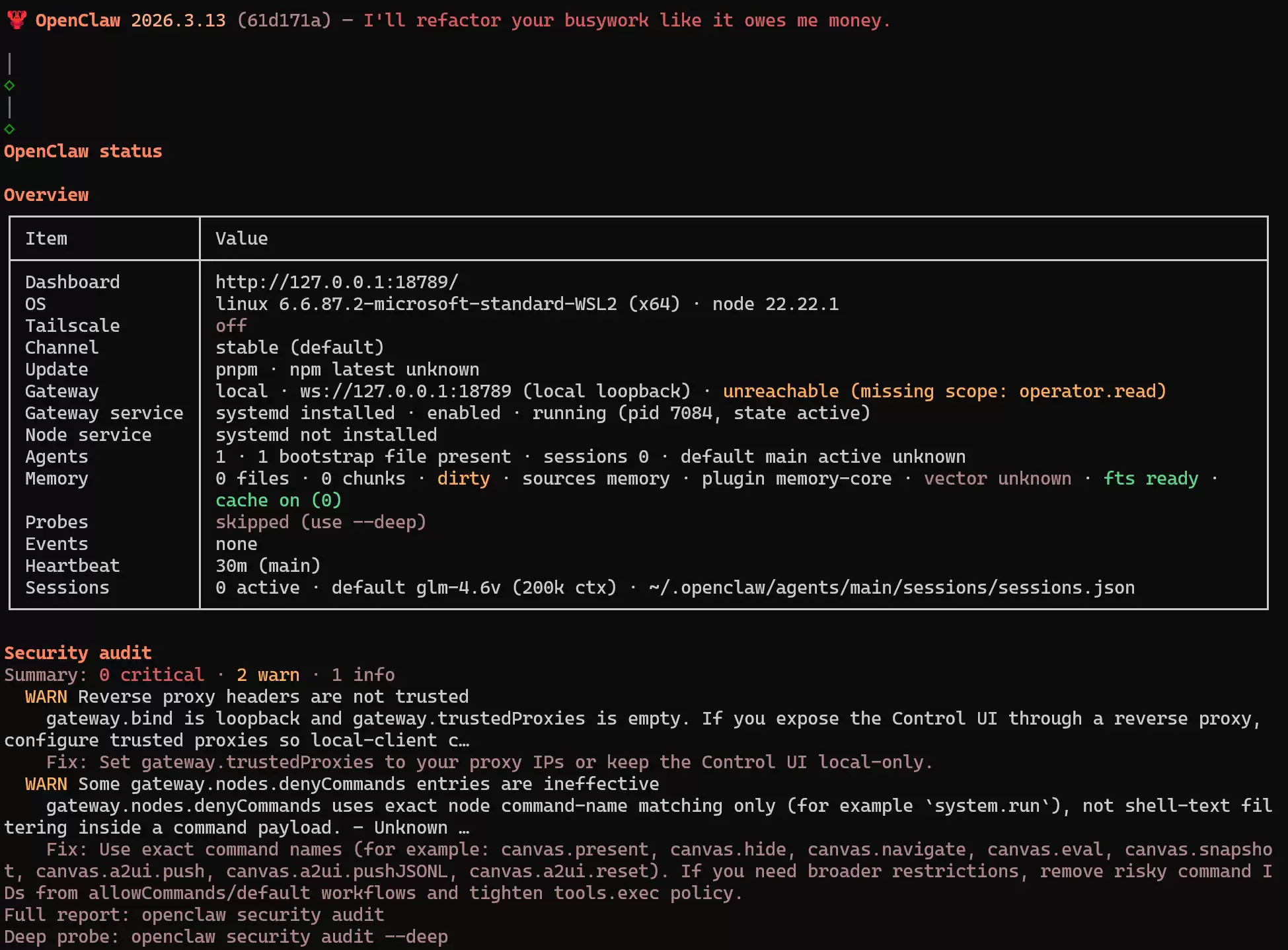
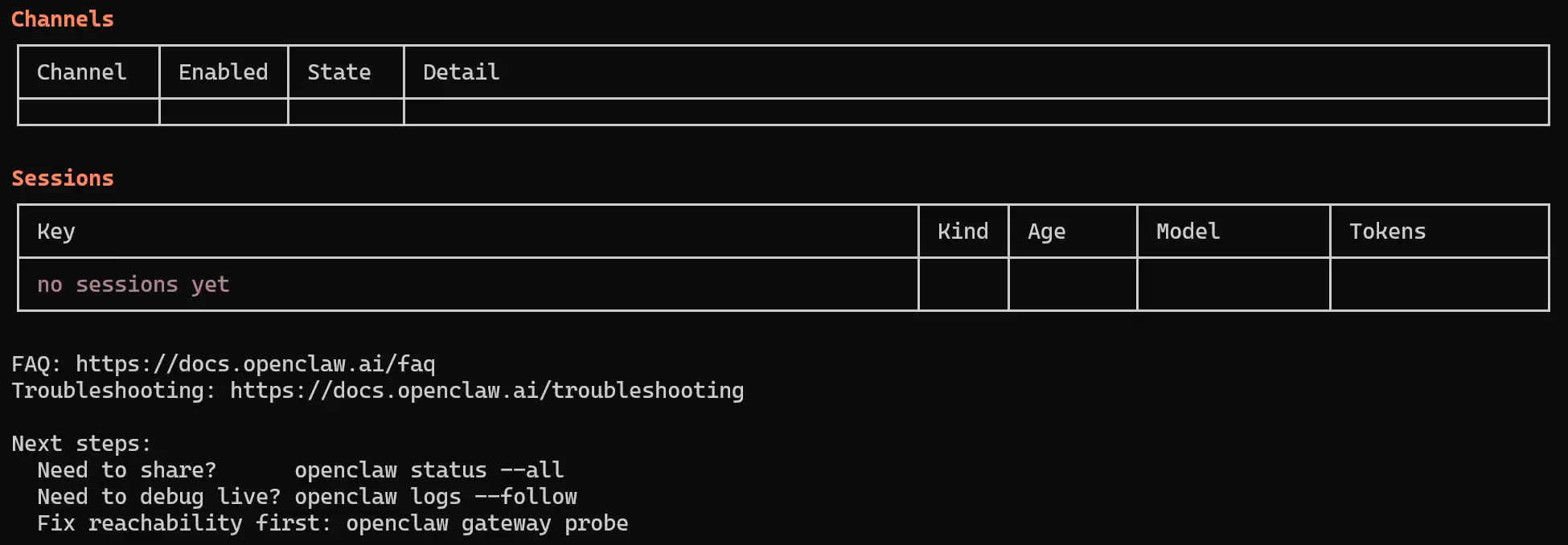
pip config set global.index-url https://pypi.tuna.tsinghua.edu.cn/simple安装完成后,可以通过openclaw status命令检查状态。如果系统提示"command not found",说明需要手动添加环境变量:export PATH="/home/xxx/.npm-global/bin:$PATH"(请根据你的实际安装路径调整)。正常状态下,命令会输出类似这样的信息:
最后,输入openclaw tui命令就可以开始对话了。到这里,整个安装过程就圆满完成了: