

微信小程序自定义 TabBar 实现红点提醒的完整方案
本文详细介绍如何在微信小程序中通过配置 custom 属性启用自定义 TabBar,并结合 Vant 组件库与 MobX 状态管理实现红点提醒功能。涵盖从基础配置、组件结构搭建到数据共享的具体代码示例,解决 TypeError 等常见问题,提供一套可直接复用的解决方案。
许多微信小程序,如聊天或电商类应用,都需要在底部导航栏(TabBar)中显示红点提醒以提示用户。为了实现这一功能,通常需要启用自定义 TabBar 配置。
配置信息
在小程序配置文件中,将 custom 字段设置为 True,即可启用自定义 TabBar 功能。
{
  "pages": [
    "pages/home/home",
    "pages/index/index",
    "pages/logs/logs"
  ],
  "window": {
    "navigationBarTextStyle": "black",
    "navigationBarTitleText": "Weixin",
    "navigationBarBackgroundColor": "#ffffff"
  },
  "componentFramework": "glass-easel",
  "sitemapLocation": "sitemap.json",
  "lazyCodeLoading": "requiredComponents",
  "usingComponents": {
    "van-button": "@vant/weapp/button/index",
    "my-numbers": "./components/numbers/numbers"
  },
  "tabBar": {
    "custom": true,
    "color": "#000000",
    "selectedColor": "#000000",
    "backgroundColor": "#ffffff",
    "list": [{
      "pagePath": "pages/home/home",
      "text": "组件"
    }, {
      "pagePath": "pages/index/index",
      "text": "接口"
    }]
  }
}
完成上述配置后,可能会发现 TabBar 暂时未显示,这是正常现象,需继续后续步骤。
添加代码文件
在项目根目录下创建对应的文件夹及组件结构,以支持自定义 TabBar 的开发。
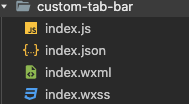
创建完成后,界面应呈现预期的组件布局效果。
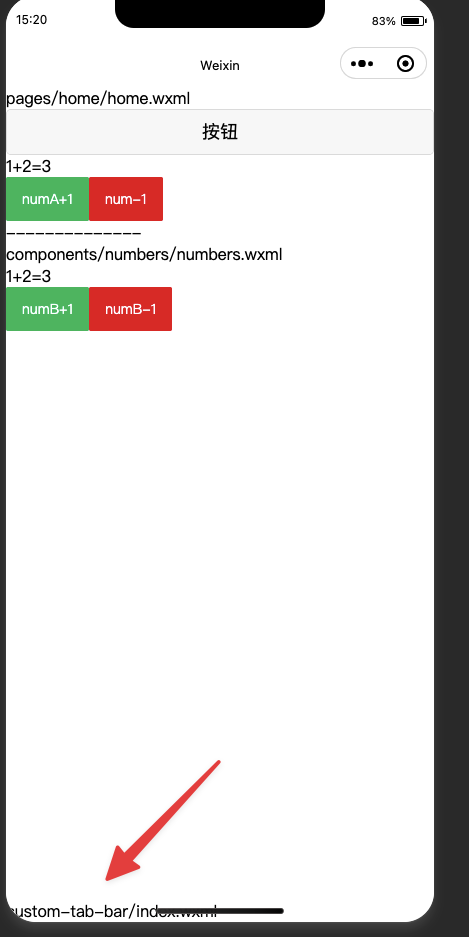
若未能显示自定义组件效果,可能是基础调试库版本兼容性问题。当出现 TypeError 提示时,建议在“详情-本地设置”中修改基础调试库版本,避免使用灰度测试版。经测试,使用 3.4.2 版本可正常运行。
实用 Vant 组建 TabBar
引用
"usingComponents": {
  "van-tabbar": "@vant/weapp/tabbar/index",
  "van-tabbar-item": "@vant/weapp/tabbar-item/index"
}
设置 Tabbar 样式
<!--custom-tab-bar/index.wxml-->
<van-tabbar active="{{ active }}" bind:change="onChange">
  <van-tabbar-item info="3">
    <image
      slot="icon"
      src="{{ icon.normal }}"
      mode="aspectFit"
      style="width: 30px; height: 18px;"
      />
      <image
        slot="icon-active"
        src="{{ icon.active }}"
        mode="aspectFit"
        style="width: 30px; height: 18px;"
        />
        自定义
      </van-tabbar-item>
        <van-tabbar-item icon="search">标签</van-tabbar-item>
        <van-tabbar-item icon="setting-o">标签</van-tabbar-item>
      </van-tabbar>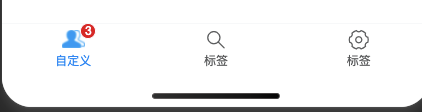
设置 JS
// custom-tab-bar/index.js
Component({
  /**
   * 组件的属性列表
   */
  properties: {
  },
  /**
   * 组件的初始数据
   */
  data: {
    active: 0,
    icon: {
      normal: 'https://img.yzcdn.cn/vant/user-inactive.png',
      active: 'https://img.yzcdn.cn/vant/user-active.png',
    },
  },
  /**
   * 组件的方法列表
   */
  methods: {
    onChange(event) {
      this.setData({ active: event.detail });
    }
  }
})
共享数据给 info 属性
创建 store 文件夹,并在其中创建 storejs 文件用于状态管理。
// 在这个 js 文件中专门创建 store 对象
import {observable,action} from 'mobx-miniprogram'
export const store = observable({
  numA:1,
  numB:2,
  info:3,
  //计算属性
  get sum(){
    return this.numA+this.numB
  },
  //action方法用来修改 store 中的值
  updateNum1:action(function(step){
    this.numA+=step
  }),
  updateNum2:action(function(step){
    this.numB+=step
  }),
})
设置 customjs 结构
import { storeBindingsBehavior } from 'mobx-miniprogram-bindings';
import { store } from '../store/store';
Component({
  behaviors: [storeBindingsBehavior],
  properties: {},
  storeBindings: {
    store,
    fields: {
      numA: () => store.numA,
      numB: () => store.numB,
      sum: 'sum'
    },
    actions: {
      buttonTap: 'update'
    }
  },
  data: {
    info: 0,
    active: 0,
    icon: {
      normal: 'https://img.yzcdn.cn/vant/user-inactive.png',
      active: 'https://img.yzcdn.cn/vant/user-active.png',
    }
  },
  observers: {
    'sum': function(val) {
      this.setData({
        info: val
      });
    }
  },
  methods: {
    myMethod() {
      this.setData({
        info: this.data.sum
      });
    }
  }
});
设置 wxml 结构
<!--custom-tab-bar/index.wxml-->
<van-tabbar active="{{ active }}" bind:change="onChange">
  <van-tabbar-item info="{{numA}}">
    <image
      slot="icon"
      src="{{ icon.normal }}"
      mode="aspectFit"
      style="width: 30px; height: 18px;"
    />
    <image
      slot="icon-active"
      src="{{ icon.active }}"
      mode="aspectFit"
      style="width: 30px; height: 18px;"
    />
    自定义
  </van-tabbar-item>
  <van-tabbar-item icon="search">标签</van-tabbar-item>
  <van-tabbar-item icon="setting-o">标签</van-tabbar-item>
</van-tabbar>
完成上述配置后,即可加载并运行自定义 TabBar。
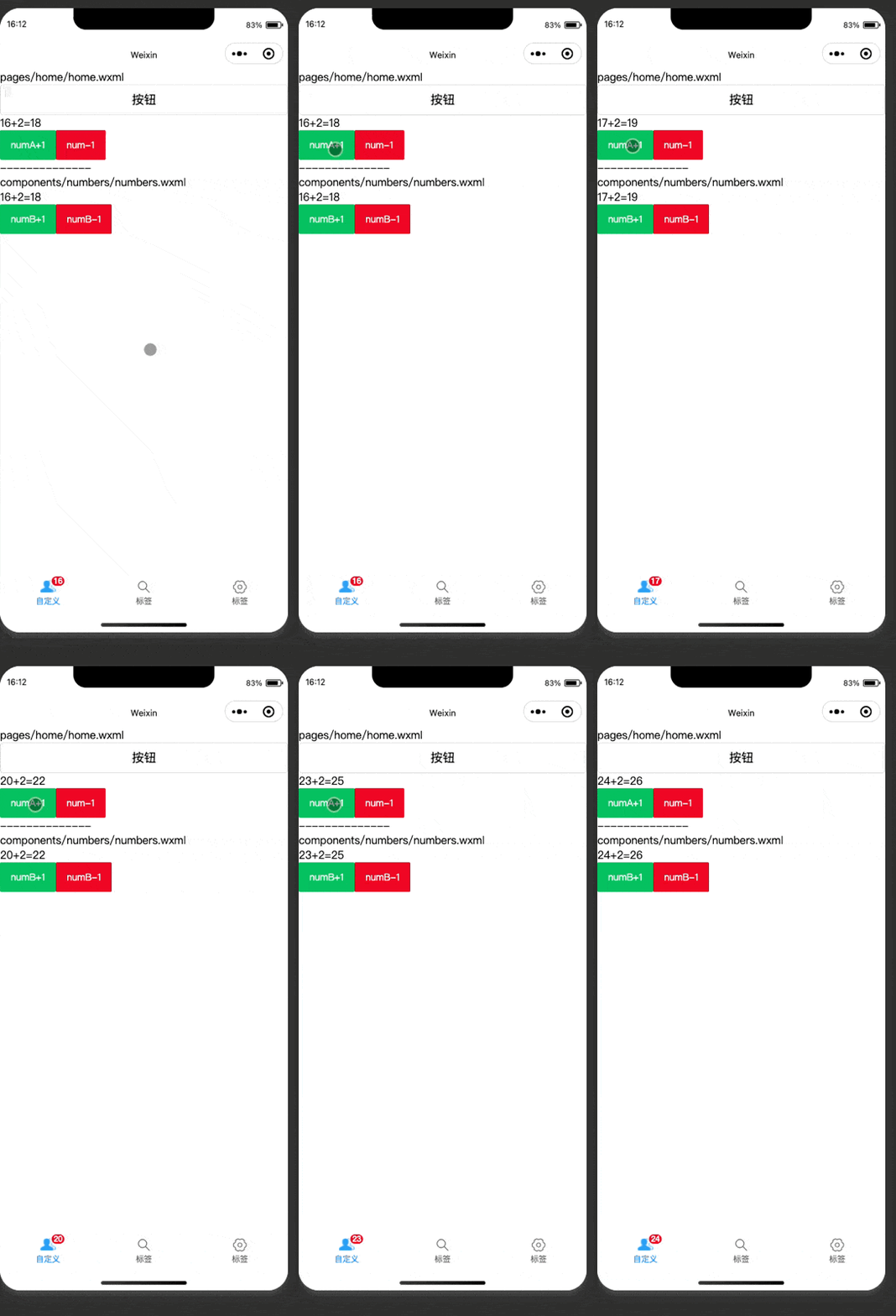
至此,关于微信小程序 TabBar 红点提醒的解决方案介绍完毕。如需了解更多相关内容,可搜索本站往期文章或继续浏览后续文章,感谢支持!
WebStorm内置JS代码格式化功能怎么用
2026-11-05 10:10:47
在线JS代码格式化与混淆压缩工具推荐及使用指南
2026-11-03 20:31:53
CodePen、JSFiddle与RunJS对比:哪款在线JavaScript编辑器更好用
2026-11-03 18:52:45
无需安装环境,5款主流JavaScript在线运行工具推荐
2026-11-03 18:23:26
JS怎么将地址栏查询字符串转换为JSON对象
2026-11-03 18:10:29