

基于iscroll.js实现移动端下拉刷新与上拉加载
本文介绍如何在H5混合开发中利用iscroll.js库实现移动端常见的下拉刷新和上拉加载效果。通过配置iscroll核心参数,监听onRefresh、onScrollMove及onScrollEnd等事件,结合CSS3动画优化加载图标体验,并提供完整的HTML结构与JavaScript代码示例,帮助开发者快速集成该功能。
iscroll.js实现下拉刷新与上拉加载教程
当前移动开发领域已不再由纯Android应用独占,采用H5嵌入Android的Hybrid混合开发模式已成为主流趋势。本文将介绍一种在移动端广泛使用的交互特效——“上拉刷新,下拉加载”,该功能将基于H5技术进行实现。
首先展示最终的运行效果。
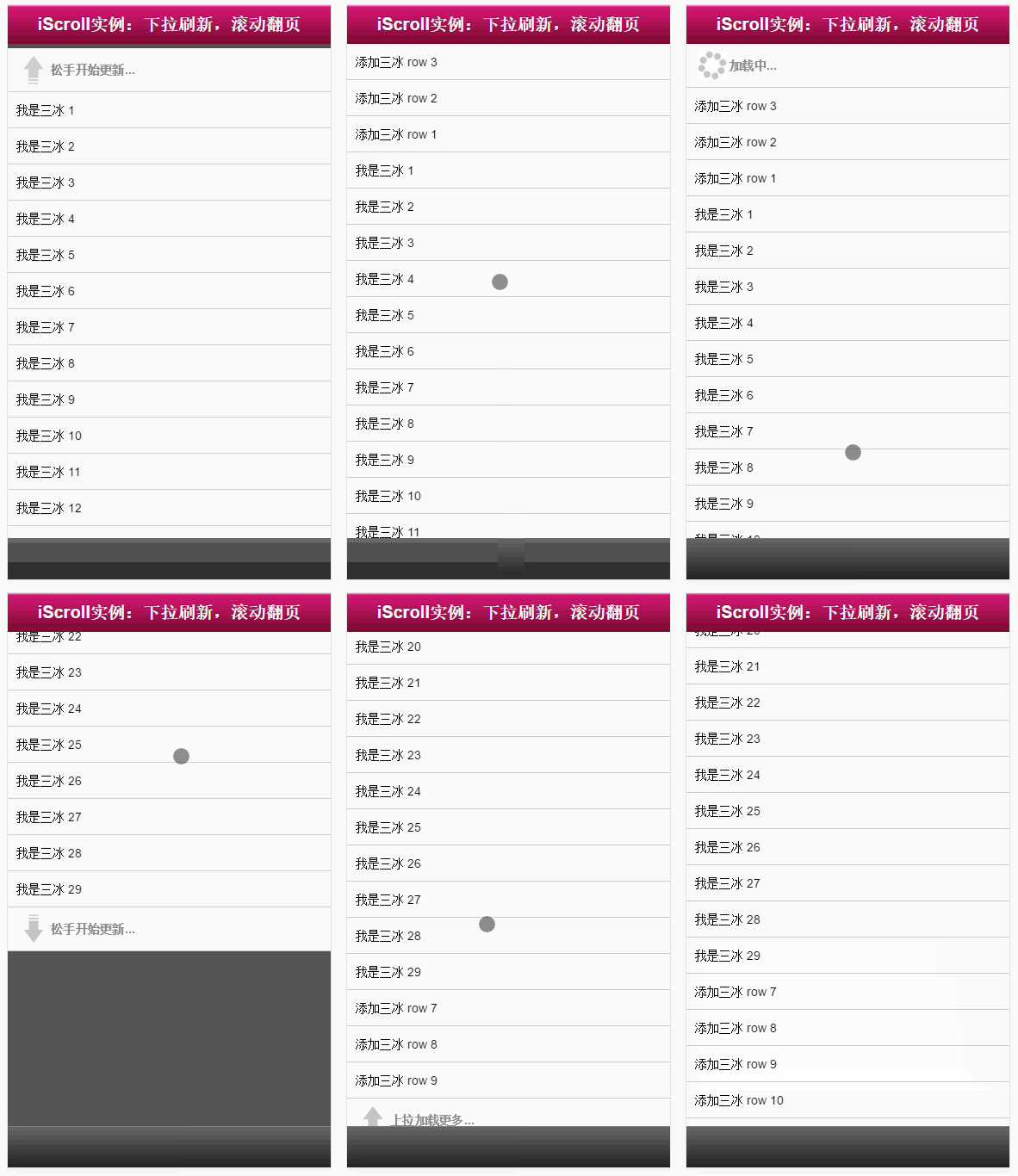
效果是否令人感到兴奋?这正是由本文介绍的核心工具“iscroll.js”所实现的。接下来,我将以最简洁的方式演示实现过程。
具体实现步骤如下:
准备iscroll.js库
第一步,准备iscroll.js库文件。
你可以从官方GitHub仓库下载该库: https://github.com/cubiq/iscroll
搭建页面HTML结构
第二步,搭建页面HTML结构。
<!DOCTYPE html>
<html>
<head>
 <meta http-equiv="Content-Type" content="text/html; charset=utf-8">
 <meta name="viewport" content="width=device-width, initial-scale=1.0, user-scalable=0, minimum-scale=1.0, maximum-scale=1.0">
 <meta name="apple-mobile-web-app-capable" content="yes">
 <meta name="apple-mobile-web-app-status-bar-style" content="black">
 <title>iScroll 实例:下拉刷新,滚动翻页</title>
 <style type="text/css" media="all">
  body,ul,li {
   padding:0;
   margin:0;
   border:0;
  }

  body {
   font-size:12px;
   -webkit-user-select:none;
   -webkit-text-size-adjust:none;
   font-family:helvetica;
  }

  #header {
   position:absolute;
   top:0; left:0;
   width:100%;
   height:45px;
   line-height:45px;
   background-image:-webkit-gradient(linear, 0 0, 0 100%, color-stop(0, #fe96c9), color-stop(0.05, #d51875), color-stop(1, #7b0a2e));
   background-image:-moz-linear-gradient(top, #fe96c9, #d51875 5%, #7b0a2e);
   background-image:-o-linear-gradient(top, #fe96c9, #d51875 5%, #7b0a2e);
   padding:0;
   color:#eee;
   font-size:20px;
   text-align:center;
  }

  #header a {
   color:#f3f3f3;
   text-decoration:none;
   font-weight:bold;
   text-shadow:0 -1px 0 rgba(0,0,0,0.5);
  }

  #footer {
   position:absolute;
   bottom:0; left:0;
   width:100%;
   height:48px;
   background-image:-webkit-gradient(linear, 0 0, 0 100%, color-stop(0, #999), color-stop(0.02, #666), color-stop(1, #222));
   background-image:-moz-linear-gradient(top, #999, #666 2%, #222);
   background-image:-o-linear-gradient(top, #999, #666 2%, #222);
   padding:0;
   border-top:1px solid #444;
  }

  #wrapper {
   position:absolute; z-index:1;
   top:45px; bottom:48px; left:0;
   width:100%;
   background:#555;
   overflow:auto;
  }

  #scroller {
   position:relative;
  /* -webkit-touch-callout:none;*/
   -webkit-tap-highlight-color:rgba(0,0,0,0);

   float:left;
   width:100%;
   padding:0;
  }

  #scroller ul {
   position:relative;
   list-style:none;
   padding:0;
   margin:0;
   width:100%;
   text-align:left;
  }

  #scroller li {
   padding:0 10px;
   height:40px;
   line-height:40px;
   border-bottom:1px solid #ccc;
   border-top:1px solid #fff;
   background-color:#fafafa;
   font-size:14px;
  }

  #scroller li > a {
   display:block;
  }

  /**
   *
   * 下拉样式 Pull down styles
   *
   */
  #pullDown, #pullUp {
   background:#fff;
   height:40px;
   line-height:40px;
   padding:5px 10px;
   border-bottom:1px solid #ccc;
   font-weight:bold;
   font-size:14px;
   color:#888;
  }
  #pullDown .pullDownIcon, #pullUp .pullUpIcon {
   display:block; float:left;
   width:40px; height:40px;
   background:url(pull-icon@2x.png) 0 0 no-repeat;
   -webkit-background-size:40px 80px; background-size:40px 80px;
   -webkit-transition-property:-webkit-transform;
   -webkit-transition-duration:250ms;
  }
  #pullDown .pullDownIcon {
   -webkit-transform:rotate(0deg) translateZ(0);
  }
  #pullUp .pullUpIcon {
   -webkit-transform:rotate(-180deg) translateZ(0);
  }


 </style>
</head>
<body>
 <div id="header">
  <a href="../db.html#page2">iScroll实例:下拉刷新,滚动翻页</a>
 </div>

 <div id="wrapper">
  <div id="scroller">

   <div id="pullDown">
    <span class="pullDownIcon"></span><span class="pullDownLabel">下拉刷新...</span>
   </div>

   <ul id="thelist">
    <li>我是三冰 1</li>
    <li>我是三冰 2</li>
    <li>我是三冰 3</li>
    <li>我是三冰 4</li>
    <li>我是三冰 5</li>
    <li>我是三冰 6</li>
    <li>我是三冰 7</li>
    <li>我是三冰 8</li>
    <li>我是三冰 9</li>
    <li>我是三冰 10</li>
    <li>我是三冰 11</li>
    <li>我是三冰 12</li>
    <li>我是三冰 13</li>
   </ul>

   <div id="pullUp">
    <span class="pullUpIcon"></span><span class="pullUpLabel">上拉加载更多...</span>
   </div>

  </div>
 </div>


 <div id="footer"></div>
</body>
</html>
代码结构非常简洁,无需过多解释,这里仅构建一个静态的页面框架。
页面初始效果如下所示。
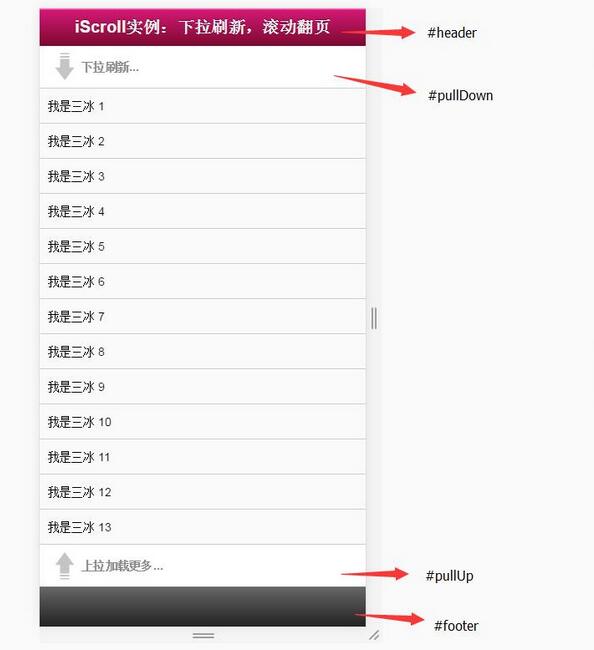
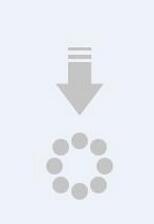
对照上述效果图查看代码会发现非常简单,此时页面与iscroll.js尚未产生关联,仅为纯静态页面。此时你唯一缺失的是下方的小图标,无需担心,文章末尾会提供相关资源。
编写完整的JavaScript代码
第三步,编写完整的JavaScript代码。
<script type="application/javascript" src="iscroll.js"></script>

<script type="text/javascript">

var myScroll,
 pullDownEl, pullDownOffset,
 pullUpEl, pullUpOffset,
 generatedCount = 0;

/**
 * 下拉刷新 (自定义实现此方法)
 * myScroll.refresh();  // 数据加载完成后,调用界面更新方法
 */
function pullDownAction () {
 setTimeout(function () { // <-- Simulate network congestion, remove setTimeout from production!
  var el, li, i;
  el = document.getElementById('thelist');

  for (i=0; i<3; i++) {
   li = document.createElement('li');
   li.innerText = '添加三冰 ' + (++generatedCount);
   el.insertBefore(li, el.childNodes[0]);
  }

  myScroll.refresh();  //数据加载完成后,调用界面更新方法 Remember to refresh when contents are loaded (ie: on ajax completion)
 }, 1000); // <-- Simulate network congestion, remove setTimeout from production!
}

/**
 * 滚动翻页 (自定义实现此方法)
 * myScroll.refresh();  // 数据加载完成后,调用界面更新方法
 */
function pullUpAction () {
 setTimeout(function () { // <-- Simulate network congestion, remove setTimeout from production!
  var el, li, i;
  el = document.getElementById('thelist');

  for (i=0; i<3; i++) {
   li = document.createElement('li');
   li.innerText = '添加三冰 ' + (++generatedCount);
   el.appendChild(li, el.childNodes[0]);
  }

  myScroll.refresh();  // 数据加载完成后,调用界面更新方法 Remember to refresh when contents are loaded (ie: on ajax completion)
 }, 1000); // <-- Simulate network congestion, remove setTimeout from production!
}

/**
 * 初始化iScroll控件
 */
function loaded() {
 pullDownEl = document.getElementById('pullDown');
 pullDownOffset = pullDownEl.offsetHeight;
 pullUpEl = document.getElementById('pullUp');
 pullUpOffset = pullUpEl.offsetHeight;

 myScroll = new iScroll('wrapper', {
  scrollbarClass: 'myScrollbar', /* 重要样式 */
  useTransition: false, /* 此属性不知用意,本人从true改为false */
  topOffset: pullDownOffset,
  onRefresh: function () {
   if (pullDownEl.className.match('loading')) {
    pullDownEl.className = '';
    pullDownEl.querySelector('.pullDownLabel').innerHTML = '下拉刷新...';
   } else if (pullUpEl.className.match('loading')) {
    pullUpEl.className = '';
    pullUpEl.querySelector('.pullUpLabel').innerHTML = '上拉加载更多...';
   }
  },
  onScrollMove: function () {
   if (this.y > 5 && !pullDownEl.className.match('flip')) {
    pullDownEl.className = 'flip';
    pullDownEl.querySelector('.pullDownLabel').innerHTML = '松手开始更新...';
    this.minScrollY = 0;
   } else if (this.y < 5 && pullDownEl.className.match('flip')) {
    pullDownEl.className = '';
    pullDownEl.querySelector('.pullDownLabel').innerHTML = '下拉刷新...';
    this.minScrollY = -pullDownOffset;
   } else if (this.y < (this.maxScrollY - 5) && !pullUpEl.className.match('flip')) {
    pullUpEl.className = 'flip';
    pullUpEl.querySelector('.pullUpLabel').innerHTML = '松手开始更新...';
    this.maxScrollY = this.maxScrollY;
   } else if (this.y > (this.maxScrollY + 5) && pullUpEl.className.match('flip')) {
    pullUpEl.className = '';
    pullUpEl.querySelector('.pullUpLabel').innerHTML = '上拉加载更多...';
    this.maxScrollY = pullUpOffset;
   }
  },
  onScrollEnd: function () {
   if (pullDownEl.className.match('flip')) {
    pullDownEl.className = 'loading';
    pullDownEl.querySelector('.pullDownLabel').innerHTML = '加载中...';
    pullDownAction(); // Execute custom function (ajax call?)
   } else if (pullUpEl.className.match('flip')) {
    pullUpEl.className = 'loading';
    pullUpEl.querySelector('.pullUpLabel').innerHTML = '加载中...';
    pullUpAction(); // Execute custom function (ajax call?)
   }
  }
 });

 setTimeout(function () { document.getElementById('wrapper').style.left = '0'; }, 800);
}

//初始化绑定iScroll控件
document.addEventListener('touchmove', function (e) { e.preventDefault(); }, false);
document.addEventListener('DOMContentLoaded', loaded, false);

</script>
虽然代码量较多,但无需担心,下面将重点解析几个关键部分:
1)onRefresh函数:当页面刷新或调用refresh()方法时会触发此函数,内部主要处理重置样式和文字显示。
2)onScrollMove函数:在拖拽页面且未松手时触发,内部主要处理箭头旋转效果及松手提示逻辑。
3)onScrollEnd函数:在松开手、停止拖拽时触发,内部主要处理数据刷新逻辑及加载动画效果。
4)topOffset属性:用于隐藏特定高度,正好将下拉刷新的触发区域隐藏掉。
5)在pullDownAction和pullUpAction函数中,示例代码使用createElement函数动态生成数据,但在实际开发中,此处应替换为Ajax请求服务器数据。
查看当前的运行效果:
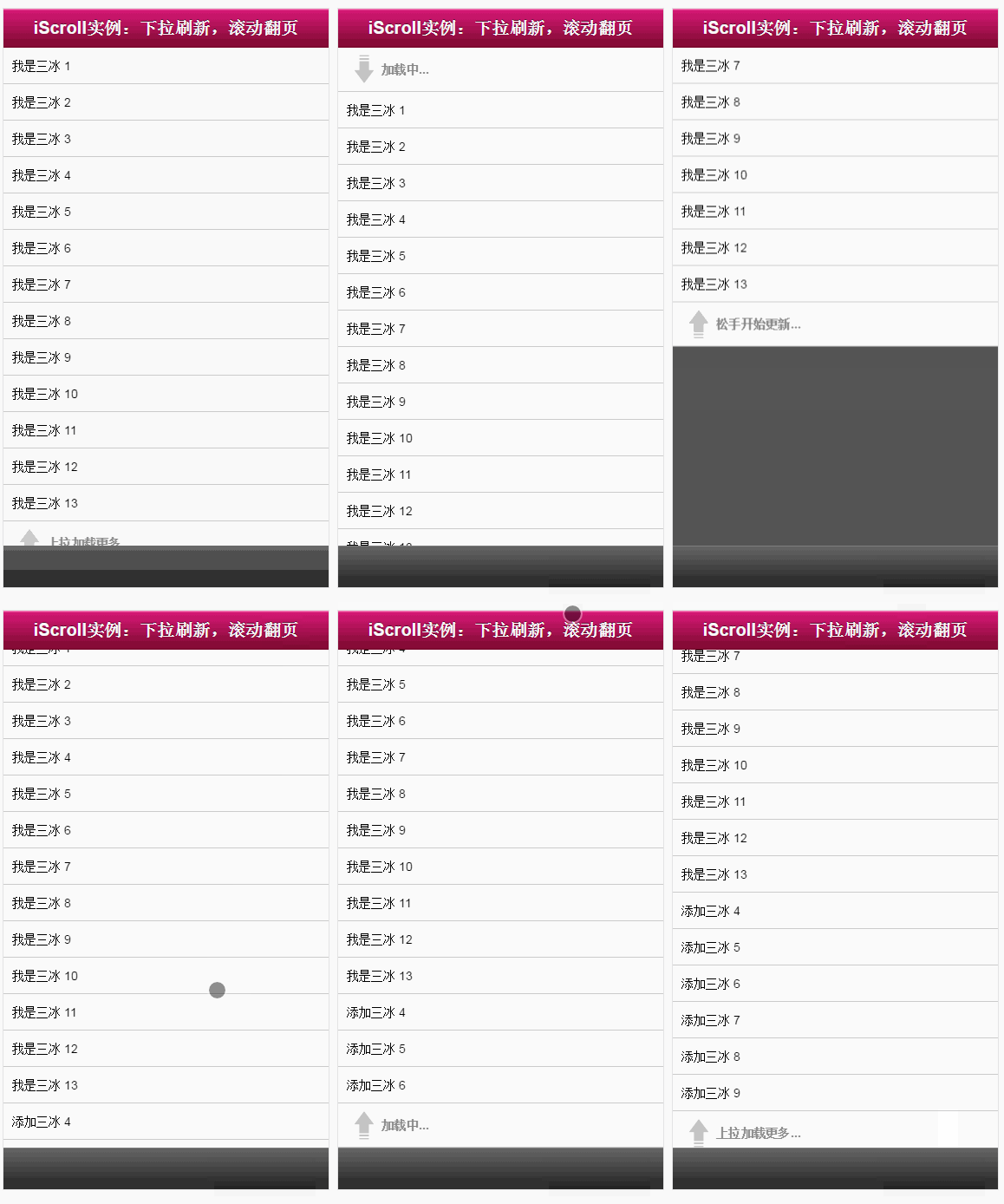
现在数据刷新功能已正常,只差最后一点优化。如果下拉和上拉时加载的小图标能带有动画效果,体验将更加完美:
为了增加动画效果,这里使用最新的CSS3技术。直接提供完整代码:
<!DOCTYPE html>
<html>
<head>
 <meta http-equiv="Content-Type" content="text/html; charset=utf-8">
 <meta name="viewport" content="width=device-width, initial-scale=1.0, user-scalable=0, minimum-scale=1.0, maximum-scale=1.0">
 <meta name="apple-mobile-web-app-capable" content="yes">
 <meta name="apple-mobile-web-app-status-bar-style" content="black">
 <title>iScroll 实例:下拉刷新,滚动翻页</title>
 <style type="text/css" media="all">
  body,ul,li {
   padding:0;
   margin:0;
   border:0;
  }

  body {
   font-size:12px;
   -webkit-user-select:none;
   -webkit-text-size-adjust:none;
   font-family:helvetica;
  }

  #header {
   position:absolute;
   top:0; left:0;
   width:100%;
   height:45px;
   line-height:45px;
   background-image:-webkit-gradient(linear, 0 0, 0 100%, color-stop(0, #fe96c9), color-stop(0.05, #d51875), color-stop(1, #7b0a2e));
   background-image:-moz-linear-gradient(top, #fe96c9, #d51875 5%, #7b0a2e);
   background-image:-o-linear-gradient(top, #fe96c9, #d51875 5%, #7b0a2e);
   padding:0;
   color:#eee;
   font-size:20px;
   text-align:center;
  }

  #header a {
   color:#f3f3f3;
   text-decoration:none;
   font-weight:bold;
   text-shadow:0 -1px 0 rgba(0,0,0,0.5);
  }

  #footer {
   position:absolute;
   bottom:0; left:0;
   width:100%;
   height:48px;
   background-image:-webkit-gradient(linear, 0 0, 0 100%, color-stop(0, #999), color-stop(0.02, #666), color-stop(1, #222));
   background-image:-moz-linear-gradient(top, #999, #666 2%, #222);
   background-image:-o-linear-gradient(top, #999, #666 2%, #222);
   padding:0;
   border-top:1px solid #444;
  }

  #wrapper {
   position:absolute; z-index:1;
   top:45px; bottom:48px; left:0;
   width:100%;
   background:#555;
   overflow:auto;
  }

  #scroller {
   position:relative;
  /* -webkit-touch-callout:none;*/
   -webkit-tap-highlight-color:rgba(0,0,0,0);

   float:left;
   width:100%;
   padding:0;
  }

  #scroller ul {
   position:relative;
   list-style:none;
   padding:0;
   margin:0;
   width:100%;
   text-align:left;
  }

  #scroller li {
   padding:0 10px;
   height:40px;
   line-height:40px;
   border-bottom:1px solid #ccc;
   border-top:1px solid #fff;
   background-color:#fafafa;
   font-size:14px;
  }

  #scroller li > a {
   display:block;
  }

  /**
   *
   * 下拉样式 Pull down styles
   *
   */
  #pullDown, #pullUp {
   background:#fff;
   height:40px;
   line-height:40px;
   padding:5px 10px;
   border-bottom:1px solid #ccc;
   font-weight:bold;
   font-size:14px;
   color:#888;
  }
  #pullDown .pullDownIcon, #pullUp .pullUpIcon {
   display:block; float:left;
   width:40px; height:40px;
   background:url(pull-icon@2x.png) 0 0 no-repeat;
   -webkit-background-size:40px 80px; background-size:40px 80px;
   -webkit-transition-property:-webkit-transform;
   -webkit-transition-duration:250ms;
  }
  #pullDown .pullDownIcon {
   -webkit-transform:rotate(0deg) translateZ(0);
  }
  #pullUp .pullUpIcon {
   -webkit-transform:rotate(-180deg) translateZ(0);
  }


  /**
   * 动画效果css3代码
   */
  #pullDown.flip .pullDownIcon {
   -webkit-transform:rotate(-180deg) translateZ(0);
  }

  #pullUp.flip .pullUpIcon {
   -webkit-transform:rotate(0deg) translateZ(0);
  }

  #pullDown.loading .pullDownIcon, #pullUp.loading .pullUpIcon {
   background-position:0 100%;
   -webkit-transform:rotate(0deg) translateZ(0);
   -webkit-transition-duration:0ms;

   -webkit-animation-name:loading;
   -webkit-animation-duration:2s;
   -webkit-animation-iteration-count:infinite;
   -webkit-animation-timing-function:linear;
  }

  @-webkit-keyframes loading {
   from { -webkit-transform:rotate(0deg) translateZ(0); }
   to { -webkit-transform:rotate(360deg) translateZ(0); }
  }

 </style>
</head>
<body>
 <div id="header">
  <a href="../db.html#page2">iScroll实例:下拉刷新,滚动翻页</a>
 </div>

 <div id="wrapper">
  <div id="scroller">

   <div id="pullDown">
    <span class="pullDownIcon"></span><span class="pullDownLabel">下拉刷新...</span>
   </div>

   <ul id="thelist">
    <li>我是三冰 1</li>
    <li>我是三冰 2</li>
    <li>我是三冰 3</li>
    <li>我是三冰 4</li>
    <li>我是三冰 5</li>
    <li>我是三冰 6</li>
    <li>我是三冰 7</li>
    <li>我是三冰 8</li>
    <li>我是三冰 9</li>
    <li>我是三冰 10</li>
    <li>我是三冰 11</li>
    <li>我是三冰 12</li>
    <li>我是三冰 13</li>
   </ul>

   <div id="pullUp">
    <span class="pullUpIcon"></span><span class="pullUpLabel">上拉加载更多...</span>
   </div>

  </div>
 </div>


 <div id="footer"></div>

<script type="application/javascript" src="iscroll.js"></script>

<script type="text/javascript">

var myScroll,
 pullDownEl, pullDownOffset,
 pullUpEl, pullUpOffset,
 generatedCount = 0;

/**
 * 下拉刷新 (自定义实现此方法)
 * myScroll.refresh();  // 数据加载完成后,调用界面更新方法
 */
function pullDownAction () {
 setTimeout(function () { // <-- Simulate network congestion, remove setTimeout from production!
  var el, li, i;
  el = document.getElementById('thelist');

  for (i=0; i<3; i++) {
   li = document.createElement('li');
   li.innerText = '添加三冰 ' + (++generatedCount);
   el.insertBefore(li, el.childNodes[0]);
  }

  myScroll.refresh();  //数据加载完成后,调用界面更新方法 Remember to refresh when contents are loaded (ie: on ajax completion)
 }, 1000); // <-- Simulate network congestion, remove setTimeout from production!
}

/**
 * 滚动翻页 (自定义实现此方法)
 * myScroll.refresh();  // 数据加载完成后,调用界面更新方法
 */
function pullUpAction () {
 setTimeout(function () { // <-- Simulate network congestion, remove setTimeout from production!
  var el, li, i;
  el = document.getElementById('thelist');

  for (i=0; i<3; i++) {
   li = document.createElement('li');
   li.innerText = '添加三冰 ' + (++generatedCount);
   el.appendChild(li, el.childNodes[0]);
  }

  myScroll.refresh();  // 数据加载完成后,调用界面更新方法 Remember to refresh when contents are loaded (ie: on ajax completion)
 }, 1000); // <-- Simulate network congestion, remove setTimeout from production!
}

/**
 * 初始化iScroll控件
 */
function loaded() {
 pullDownEl = document.getElementById('pullDown');
 pullDownOffset = pullDownEl.offsetHeight;
 pullUpEl = document.getElementById('pullUp');
 pullUpOffset = pullUpEl.offsetHeight;

 myScroll = new iScroll('wrapper', {
  scrollbarClass: 'myScrollbar', /* 重要样式 */
  useTransition: false, /* 此属性不知用意,本人从true改为false */
  topOffset: pullDownOffset,
  onRefresh: function () {
   if (pullDownEl.className.match('loading')) {
    pullDownEl.className = '';
    pullDownEl.querySelector('.pullDownLabel').innerHTML = '下拉刷新...';
   } else if (pullUpEl.className.match('loading')) {
    pullUpEl.className = '';
    pullUpEl.querySelector('.pullUpLabel').innerHTML = '上拉加载更多...';
   }
  },
  onScrollMove: function () {
   if (this.y > 5 && !pullDownEl.className.match('flip')) {
    pullDownEl.className = 'flip';
    pullDownEl.querySelector('.pullDownLabel').innerHTML = '松手开始更新...';
    this.minScrollY = 0;
   } else if (this.y < 5 && pullDownEl.className.match('flip')) {
    pullDownEl.className = '';
    pullDownEl.querySelector('.pullDownLabel').innerHTML = '下拉刷新...';
    this.minScrollY = -pullDownOffset;
   } else if (this.y < (this.maxScrollY - 5) && !pullUpEl.className.match('flip')) {
    pullUpEl.className = 'flip';
    pullUpEl.querySelector('.pullUpLabel').innerHTML = '松手开始更新...';
    this.maxScrollY = this.maxScrollY;
   } else if (this.y > (this.maxScrollY + 5) && pullUpEl.className.match('flip')) {
    pullUpEl.className = '';
    pullUpEl.querySelector('.pullUpLabel').innerHTML = '上拉加载更多...';
    this.maxScrollY = pullUpOffset;
   }
  },
  onScrollEnd: function () {
   if (pullDownEl.className.match('flip')) {
    pullDownEl.className = 'loading';
    pullDownEl.querySelector('.pullDownLabel').innerHTML = '加载中...';
    pullDownAction(); // Execute custom function (ajax call?)
   } else if (pullUpEl.className.match('flip')) {
    pullUpEl.className = 'loading';
    pullUpEl.querySelector('.pullUpLabel').innerHTML = '加载中...';
    pullUpAction(); // Execute custom function (ajax call?)
   }
  }
 });

 setTimeout(function () { document.getElementById('wrapper').style.left = '0'; }, 800);
}

//初始化绑定iScroll控件
document.addEventListener('touchmove', function (e) { e.preventDefault(); }, false);
document.addEventListener('DOMContentLoaded', loaded, false);

</script>
</body>
</html>
以上就是本文的全部内容,希望对大家的学习有所帮助,也希望大家多多支持本站。
JS空字符串、null和undefined转数字的结果是什么
2026-11-05 14:49:16
CodePen、JSFiddle与StackBlitz:主流JS在线编辑器对比
2026-11-05 13:38:29
JS怎么将时间戳转换为“刚刚”、“几分钟前”等相对时间
2026-11-05 12:55:14
JavaScript将儒略日逆向还原为公历日期时间的实现方法
2026-11-04 23:51:05
能在我的世界手机版直接修改JS代码吗
2026-11-04 19:02:53