

手机端 HTML5 使用 PhotoSwipe 实现仿微信朋友圈图片浏览与手势交互
本文介绍如何在 HTML5 移动端项目中集成 PhotoSwipe 插件,实现仿微信朋友圈的图片放大浏览效果。详细讲解插件引入、DOM 结构配置、图片参数设置及 JS 初始化代码,涵盖手势操作、UI 自定义及分享功能实现,帮助开发者快速构建响应式图片浏览组件。
PhotoSwipe 插件特性与效果展示
首先展示几组运行效果图:

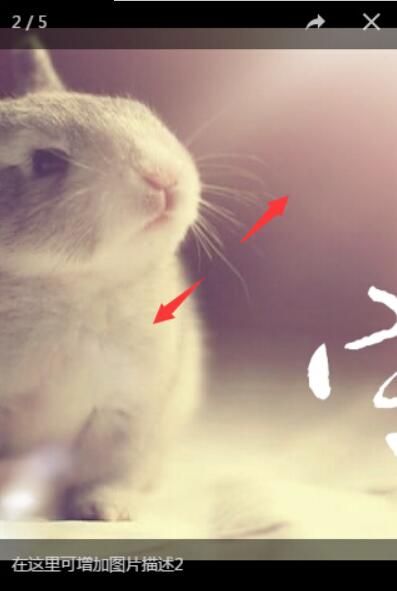
点击任意一张缩略图即可触发放大效果,同时支持显示图片的文字描述信息:

界面同时集成了分享功能按钮:

支持通过手势进行图片的放大与缩小操作
本方案采用的核心 JavaScript 框架为 PhotoSwipe。PhotoSwipe 是一款专为图片放大浏览设计的插件,具备 PC 端与移动端的广泛兼容性。该插件历经多个版本迭代,持续更新中,尽管开发过程中遇到过诸多问题,但其在移动端体验上具有显著优势。具体特性包括: 1、多种风格可控: 可配置标题、分享按钮、全屏按钮、点击事件响应、字幕显示开关以及背景透明度等样式选项。 2、全平台手势兼容: 完美支持移动端触摸手势及 PC 端鼠标操作。基础手势涵盖:滑动切换上一张或下一张、拖动平移、缩放、放大或关闭操作,点击切换控件,以及双击放大或缩小。 3、分享功能: 默认 UI 提供分享链接按钮,预设分享目标为 Facebook、Twitter 和 Pinterest,但开发者可通过 API 自定义分享类型。 4、用户界面(UI)分离: UI 层与核心脚本完全解耦,支持高度自定义。默认的 PhotoSwipe UI 具备响应式设计,能够适配桌面电脑、平板电脑和移动设备。 5、更多功能等待探索。 官方网址:http://photoswipe.com/ GitHub 仓库:https://github.com/dimsemenov/photoswipe
1、从官网下载 PhotoSwipe 资源,并在页面中引入相关文件。
PhotoSwipe 引入与基础配置
<link rel="stylesheet prefetch" href="css/photoswipe.css">
<link rel="stylesheet prefetch" href="css/default-skin/default-skin.css">
<script src="js/photoswipe.js"></script>
<script src="js/photoswipe-ui-default.min.js"></script>
2、页面中必须手动添加以下 HTML 结构代码(这是插件运行所必需的 DOM 结构,作者未将其集成到 JS 文件中,因此使用者需自行添加到网页中):
HTML 结构搭建与图片参数设置
<!-- Root element of PhotoSwipe. Must have class pswp. -->
<div class="pswp" tabindex="-1" role="dialog" aria-hidden="true">

 <!-- Background of PhotoSwipe.
 It's a separate element as animating opacity is faster than rgba(). -->
 <div class="pswp__bg"></div>

 <!-- Slides wrapper with overflow:hidden. -->
 <div class="pswp__scroll-wrap">

 <!-- Container that holds slides.
 PhotoSwipe keeps only 3 of them in the DOM to save memory.
 Don't modify these 3 pswp__item elements, data is added later on. -->
 <div class="pswp__container">
 <div class="pswp__item"></div>
 <div class="pswp__item"></div>
 <div class="pswp__item"></div>
 </div>

 <!-- Default (PhotoSwipeUI_Default) interface on top of sliding area. Can be changed. -->
 <div class="pswp__ui pswp__ui--hidden">

 <div class="pswp__top-bar">

 <!-- Controls are self-explanatory. Order can be changed. -->

 <div class="pswp__counter"></div>

 <button class="pswp__button pswp__button--close" title="Close (Esc)"></button>

 <button class="pswp__button pswp__button--share" title="Share"></button>

 <button class="pswp__button pswp__button--fs" title="Toggle fullscreen"></button>

 <button class="pswp__button pswp__button--zoom" title="Zoom in/out"></button>

 <!-- element will get class pswp__preloader--active when preloader is running -->
 <div class="pswp__preloader">
  <div class="pswp__preloader__icn">
  <div class="pswp__preloader__cut">
  <div class="pswp__preloader__donut"></div>
  </div>
  </div>
 </div>
 </div>

 <div class="pswp__share-modal pswp__share-modal--hidden pswp__single-tap">
 <div class="pswp__share-tooltip"></div>
 </div>

 <button class="pswp__button pswp__button--arrow--left" title="Previous (arrow left)">
 </button>

 <button class="pswp__button pswp__button--arrow--right" title="Next (arrow right)">
 </button>

 <div class="pswp__caption">
 <div class="pswp__caption__center"></div>
 </div>

 </div>

 </div>

</div>
3、需要浏览的图片需包裹在 PhotoSwipe 的结构代码中。此处需注意: data-pswp-uid 属性在每个相册容器中必须保持唯一;data-size 属性用于指定放大后图片显示的宽度和高度。若指定的宽高与实际图片不符,会导致图片显示变形。目前尚未找到去除 data-size 属性的替代方案,后续如有时间可研究其他解决方法。
<!--data-pswp-uid在每个相册中必须是唯一的,data-size指定放大时图片显示的宽和高-->
<div class="my-gallery" data-pswp-uid="1">
  <figure>
  <a href="img/m3.jpg" data-size="670x712">
  <img src="img/th1.jpg">
  </a>
  </figure>
</div>
4、添加 JavaScript 代码,该部分逻辑作者也未集成到 PhotoSwipe 框架核心中,需要开发者手动写入网页脚本中。
JavaScript 初始化代码实现
<script type="text/javascript">
 var initPhotoSwipeFromDOM = function(gallerySelector) {

 // 解析来自DOM元素幻灯片数据(URL,标题,大小...)
 // (children of gallerySelector)
 var parseThumbnailElements = function(el) {
 var thumbElements = el.childNodes,
 numNodes = thumbElements.length,
 items = [],
 figureEl,
 linkEl,
 size,
 item;

 for(var i = 0; i < numNodes; i++) {

 figureEl = thumbElements[i]; // <figure> element

 // 仅包括元素节点
 if(figureEl.nodeType !== 1) {
 continue;
 } 25 linkEl = figureEl.children[0]; // <a> element

 size = linkEl.getAttribute('data-size').split('x');

 // 创建幻灯片对象
 item = {
 src: linkEl.getAttribute('href'),
 w: parseInt(size[0], 10),
 h: parseInt(size[1], 10)
 };


 if(figureEl.children.length > 1) {
 // <figcaption> content
 item.title = figureEl.children[1].innerHTML;
 }

 if(linkEl.children.length > 0) {
 // <img> 缩略图节点, 检索缩略图网址
 item.msrc = linkEl.children[0].getAttribute('src');
 }

 item.el = figureEl; // 保存链接元素 for getThumbBoundsFn
 items.push(item);
 }

 return items;
 };

 // 查找最近的父节点
 var closest = function closest(el, fn) {
 return el && ( fn(el) ? el : closest(el.parentNode, fn) );
 };

 // 当用户点击缩略图触发
 var onThumbnailsClick = function(e) {
 e = e || window.event;
 e.preventDefault ? e.preventDefault() : e.returnValue = false;

 var eTarget = e.target || e.srcElement;

 // find root element of slide
 var clickedListItem = closest(eTarget, function(el) {
 return (el.tagName && el.tagName.toUpperCase() === 'FIGURE');
 });

 if(!clickedListItem) {
 return;
 }

 // find index of clicked item by looping through all child nodes
 // alternatively, you may define index via data- attribute
 var clickedGallery = clickedListItem.parentNode,
 childNodes = clickedListItem.parentNode.childNodes,
 numChildNodes = childNodes.length,
 nodeIndex = 0,
 index;

 for (var i = 0; i < numChildNodes; i++) {
 if(childNodes[i].nodeType !== 1) {
 continue;
 }

 if(childNodes[i] === clickedListItem) {
 index = nodeIndex;
 break;
 }
 nodeIndex++;
 }


 if(index >= 0) {
 // open PhotoSwipe if valid index found
 openPhotoSwipe( index, clickedGallery );
 }
 return false;
 };

 // parse picture index and gallery index from URL (#&pid=1&gid=2)
 var photoswipeParseHash = function() {
 var hash = window.location.hash.substring(1),
 params = {};

 if(hash.length < 5) {
 return params;
 }

 var vars = hash.split('&');
 for (var i = 0; i < vars.length; i++) {
 if(!vars[i]) {
 continue;
 }
 var pair = vars[i].split('=');
 if(pair.length < 2) {
 continue;
 }
 params[pair[0]] = pair[1];
 }

 if(params.gid) {
 params.gid = parseInt(params.gid, 10);
 }

 return params;
 };

 var openPhotoSwipe = function(index, galleryElement, disableAnimation, fromURL) {
 var pswpElement = document.querySelectorAll('.pswp')[0],
 gallery,
 options,
 items;

 items = parseThumbnailElements(galleryElement);

 // 这里可以定义参数
 options = {
 barsSize: {
 top: 100,
 bottom: 100
 },
 fullscreenEl : false, // 是否支持全屏按钮
 shareButtons: [
 {id:'wechat', label:'分享微信', url:'#'},
 {id:'weibo', label:'新浪微博', url:'#'},
 {id:'download', label:'保存图片', url:'{{raw_image_url}}', download:true}
 ], // 分享按钮

 // define gallery index (for URL)
 galleryUID: galleryElement.getAttribute('data-pswp-uid'),

 getThumbBoundsFn: function(index) {
 // See Options -> getThumbBoundsFn section of documentation for more info
 var thumbnail = items[index].el.getElementsByTagName('img')[0], // find thumbnail
  pageYScroll = window.pageYOffset || document.documentElement.scrollTop,
  rect = thumbnail.getBoundingClientRect();

 return {x:rect.left, y:rect.top + pageYScroll, w:rect.width};
 }

 };

 // PhotoSwipe opened from URL
 if(fromURL) {
 if(options.galleryPIDs) {
 // parse real index when custom PIDs are used
 for(var j = 0; j < items.length; j++) {
  if(items[j].pid == index) {
  options.index = j;
  break;
  }
 }
 } else {
 // in URL indexes start from 1
 options.index = parseInt(index, 10) - 1;
 }
 } else {
 options.index = parseInt(index, 10);
 }

 // exit if index not found
 if( isNaN(options.index) ) {
 return;
 }

 if(disableAnimation) {
 options.showAnimationDuration = 0;
 }

 // Pass data to PhotoSwipe and initialize it
 gallery = new PhotoSwipe( pswpElement, PhotoSwipeUI_Default, items, options);
 gallery.init();
 };

 // loop through all gallery elements and bind events
 var galleryElements = document.querySelectorAll( gallerySelector );

 for(var i = 0, l = galleryElements.length; i < l; i++) {
 galleryElements[i].setAttribute('data-pswp-uid', i+1);
 galleryElements[i].onclick = onThumbnailsClick;
 }

 // Parse URL and open gallery if it contains #&pid=3&gid=1
 var hashData = photoswipeParseHash();
 if(hashData.pid && hashData.gid) {
 openPhotoSwipe( hashData.pid , galleryElements[ hashData.gid - 1 ], true, true );
 }
 };

 // execute above function
 initPhotoSwipeFromDOM('.my-gallery');
</script>
本文内容已整理至《JavaScript 微信开发技巧汇总》,欢迎读者阅读学习。
为大家推荐一篇当前关注度较高的微信小程序教程:《微信小程序开发教程》。这是小编为大家精心整理的内容,希望大家喜欢。
以上就是本文的全部内容,希望对大家的学习有所帮助,也希望大家多多支持本站。
D3.js 比例尺与坐标轴的配置详解
2026-11-05 16:54:46
JavaScript怎么遍历对象的Symbol键和不可枚举属性
2026-11-05 13:13:39
封装一个健壮的JS字符串判空工具函数
2026-11-05 12:16:14
JavaScript合并数组的三种常用方法:concat、扩展运算符与push
2026-11-05 11:22:29
JavaScript立即执行函数(IIFE)是什么及基本语法
2026-11-05 10:51:19