
Echarts实现点击列表联动饼图的示例代码
本文介绍如何在React项目中利用echarts-for-react库,实现左侧列表点击与右侧饼图高亮的联动效果。通过定义StageLine和Pie组件,利用forwardRef获取图表实例,并在父组件中管理点击状态与高亮索引,完成列表与饼图的交互逻辑。
本文提供一个简单易懂的Echarts案例,旨在实现点击左侧列表时联动右侧饼图的效果。
- 首先需要安装 echarts-for-react 依赖库。
- 在项目中引入 ReactECharts 组件,代码为:import ReactECharts from 'echarts-for-react';。
- 接下来开始编写具体的案例代码。
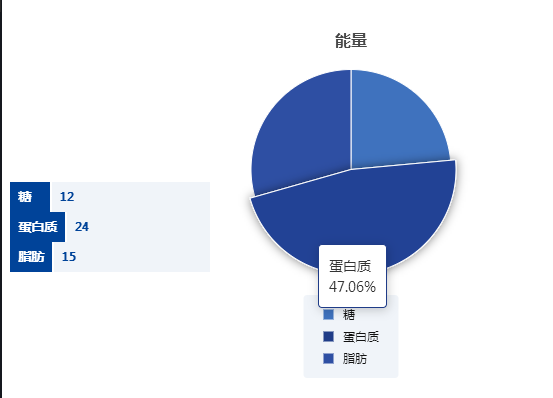
最终实现的界面效果如图所示。
首先编写左侧列表组件 StageLine。
利用 StageItem 组件遍历 data 数组中的数据并进行展示。
import React = require('react');
import { StageItem } from './StageItem';
const data = [
  { name: '糖', value: '12' },
  { name: '蛋白质', value: '24' },
  { name: '脂肪', value: '15' },
];
type StageLineProps = {
  handleClickPie?: (index: number) => void;
  setCurrentIndex?: (o: number) => void;
};
export default function StageLine({
  handleClickPie,
  setCurrentIndex,
}: StageLineProps) {
  return (
    <div>
      {data?.map((item, index) => {
        return (
          <div
            key={index}
            onClick={() => {
              handleClickPie?.(index);
              setCurrentIndex?.(index);
            }}
          >
            <StageItem title={item.name} value={item.value} />
          </div>
        );
      })}
    </div>
  );
}
StageLine 的子组件为 StageItem,负责渲染列表项。
import { Group, Text } from '@mantine/core';
import React = require('react');
type StageItemProps = { title: string; value: string };
export function StageItem({ title, value }: StageItemProps) {
  return (
    <Group
      spacing={2}
      noWrap
      align="center"
      sx={{
        cursor: 'pointer',
        width: 200,
        display: 'flex',
        flexDirection: 'row',
        flexWrap: 'nowrap',
        justifyContent: 'center',
        alignItems: 'stretch',
        alignContent: 'stretch',
        alignSelf: 'normal',
      }}
    >
      <Text
        sx={{
          backgroundColor: '#004399',
          padding: '6px 8px',
          color: 'white',
          minWidth: 40,
          maxWidth: 85,
          lineHeight: '18px',
          alignItems: 'stretch',
          display: 'inline-block',
          flexShrink: 0,
        }}
        size={12}
        weight={600}
      >
        {title}
      </Text>
      <Text
        sx={{
          backgroundColor: 'rgba(0, 67, 153, 0.06)',
          padding: '6px 8px',
          color: '#004399',
          flexGrow: 1,
          '.react-katex ': {
            // height: '26px',
          },
        }}
        size={12}
        weight={600}
      >
        {value ?? '-'}
        {/* <div style={{ display: 'inline-block' }}>{unit}</div> */}
      </Text>
    </Group>
  );
}
接下来编写右侧的饼图组件。
利用 forwardRef 接收从父组件传递过来的 ref,并将该 ref 赋给饼图组件 ReactECharts。获取到饼图的 ref 后,即可实现左右联动的效果。
import { EChartsInstance } from 'echarts-for-react';
import { log } from 'echarts/types/src/util/log';
import { forwardRef, lazy } from 'react';
import React = require('react');
const ReactECharts = lazy(() => import('echarts-for-react'));
const data = [
  { name: '糖', value: '12' },
  { name: '蛋白质', value: '24' },
  { name: '脂肪', value: '15' },
];
export const Pie = forwardRef<EChartsInstance, any>((_, ref) => {
  // console.log(ref,2)
  const options = {
    color: [
      '#3F72BE',
      '#1F3C88',
      '#2E4FA3',
      '#6B90D8',
      '#8DBEEB',
      '#B6D0F8',
      '#DAEBFB',
      '#F0F8FD',
    ],
    title: {
      text: '能量',
      left: 'center',
      textStyle: {
        fontSize: '16px',
        fontWeight: 700,
      },
    },
    tooltip: {
      trigger: 'item',
      formatter: `{b} <br/>{d}% `,
      showContent: true,
      alwaysShowContent: false,
      displayMode: 'single',
      renderMode: 'auto',
      confine: null,
      showDelay: 0,
      hideDelay: 100,
      transitionDuration: 0.4,
      enterable: true,
      textStyle: {
        fontSize: 14,
        color: '#333',
      },
    },
    legend: {
      itemStyle: {
        borderWidth: 0,
      },
      orient: 'vertical',
      backgroundColor: 'rgba(0,67,153,0.06)',
      bottom: 100 - 17 * (data?.length ?? 0),
      borderRadius: 4,
      itemWidth: 10,
      itemHeight: 10,
      padding: [12, 20],
      itemGap: 7,
      icon: 'rect',
      textStyle: {
        padding: [0, 0, 0, 4],
        color: '#111',
        fontWeight: 400,
        fontFamily: 'sans-serif',
        lineHeight: 15,
        fontSize: 12,
      },
    },
    series: [
      {
        itemStyle: {
          borderWidth: 1,
          borderRadius: 0,
          borderColor: '#fff',
        },
        name: '',
        type: 'pie',
        radius: '80%',
        top: -115,
        label: {
          show: false,
          position: 'center',
        },
        data: data,
        labelLine: {
          show: false,
        },
        emphasis: {
          itemStyle: {
            shadowBlur: 10,
            shadowOffsetX: 0,
            shadowColor: 'rgba(0, 0, 0, 0.5)',
          },
        },
      },
    ],
  };
  return (
    <div>
      <ReactECharts
        ref={ref}
        option={options}
        style={{ width: 250, height: 400, margin: '25px auto' }}
        opts={{ renderer: 'svg' }}
      />
    </div>
  );
});
在最外层父组件中编写相关方法,以执行联动操作。
handleClickPie 方法用于处理左侧列表点击事件:当点击列表某一项时,右侧对应部分的饼图高亮显示;同时,点击当前项时需取消上一次点击项的高亮状态。为此,需要获取之前高亮项的索引(prePieRef)和当前高亮项的索引(currentIndex)。
clickOutsidePieRef 用于处理点击屏幕其他位置时,取消当前高亮状态。
注意:该 ref 必须绑定在饼图的外层容器上,否则无法生效。
import { Box, Group } from '@mantine/core';
import * as React from 'react';
import { useRef, useState } from 'react';
import { Pie } from './Pie';
import StageLine from './StageLine';
import './style.css';
import ReactECharts from 'echarts-for-react';
import { useClickOutside } from '@mantine/hooks';
export default function App() {
  const pieRef = useRef<ReactECharts>(null);
  const prePieRef = useRef(-1);
  const [currentIndex, setCurrentIndex] = useState(-1);
  const handleClickPie = (index: number) => {
    if (prePieRef.current >= 0) {
      pieRef?.current?.getEchartsInstance()?.dispatchAction({
        type: 'downplay',
        seriesIndex: 0,
        dataIndex: prePieRef.current,
      });
    }
    pieRef?.current?.getEchartsInstance()?.dispatchAction({
      type: 'highlight',
      seriesIndex: 0,
      dataIndex: index,
    });
    prePieRef.current = index;
    pieRef?.current?.getEchartsInstance()?.dispatchAction({
      type: 'showTip',
      seriesIndex: 0,
      dataIndex: index,
    });
  };
  const clickOutsidePieRef = useClickOutside(() => {
    const downplay = pieRef?.current?.getEchartsInstance()?.dispatchAction({
      type: 'downplay',
      seriesIndex: 0,
      dataIndex: currentIndex,
    });
    const hideTip = pieRef?.current?.getEchartsInstance()?.dispatchAction({
      type: 'hideTip',
    });
    return { downplay, hideTip };
  });
  console.log(pieRef)
  return (
    <Group>
      <StageLine
        handleClickPie={handleClickPie}
        setCurrentIndex={setCurrentIndex}
      />
      <Box ref={clickOutsidePieRef}>
        <Pie ref={pieRef} />
      </Box>
    </Group>
  );
}
最后附上完整源码链接:https://stackblitz.com/edit/react-ts-reghex?file=App.tsx,Pie.tsx,StageItem.tsx,StageLine.tsx
到此这篇关于Echarts实现点击列表联动饼图的示例代码的文章就介绍到这了,更多相关Echarts列表联动饼图内容请搜索本站以前的文章或继续浏览下面的相关文章希望大家以后多多支持本站!
React 与 Vue 3 核心差异解析:技术选型参考
2026-11-05 13:25:04
利用JS三目运算符简化React和Vue组件中的条件渲染
2026-11-05 12:50:09
Vite 与 Webpack 在 React 项目中的配置差异
2026-11-05 10:13:11
React Hooks 实战:useState 与 useEffect 使用规范
2026-11-04 18:46:10
基于 UmiJS 与 Ant Design Pro 搭建企业级中后台系统
2026-11-03 16:42:02