

JavaScript实现系统防挂机(无操作弹窗)的示例详解
本文详解如何使用JavaScript实现系统防挂机功能,通过监控用户无操作时间触发弹窗警告。重点解析多页面环境下倒计时同步、全局状态管理及关闭弹窗时清理所有提示的逻辑,提供完整的代码实现与关键方法说明。
介绍
在部分在线学习平台或考试系统中,若用户长时间未进行任何交互,系统会判定其不在场并自动退出登录。这一机制旨在保障账户安全、减轻服务器负载并满足特定的业务逻辑需求。
简而言之,该功能类似于游戏中长时间无操作时弹出的“请认真对待游戏”提示框,旨在提醒用户保持活跃。
动图演示
正常演示
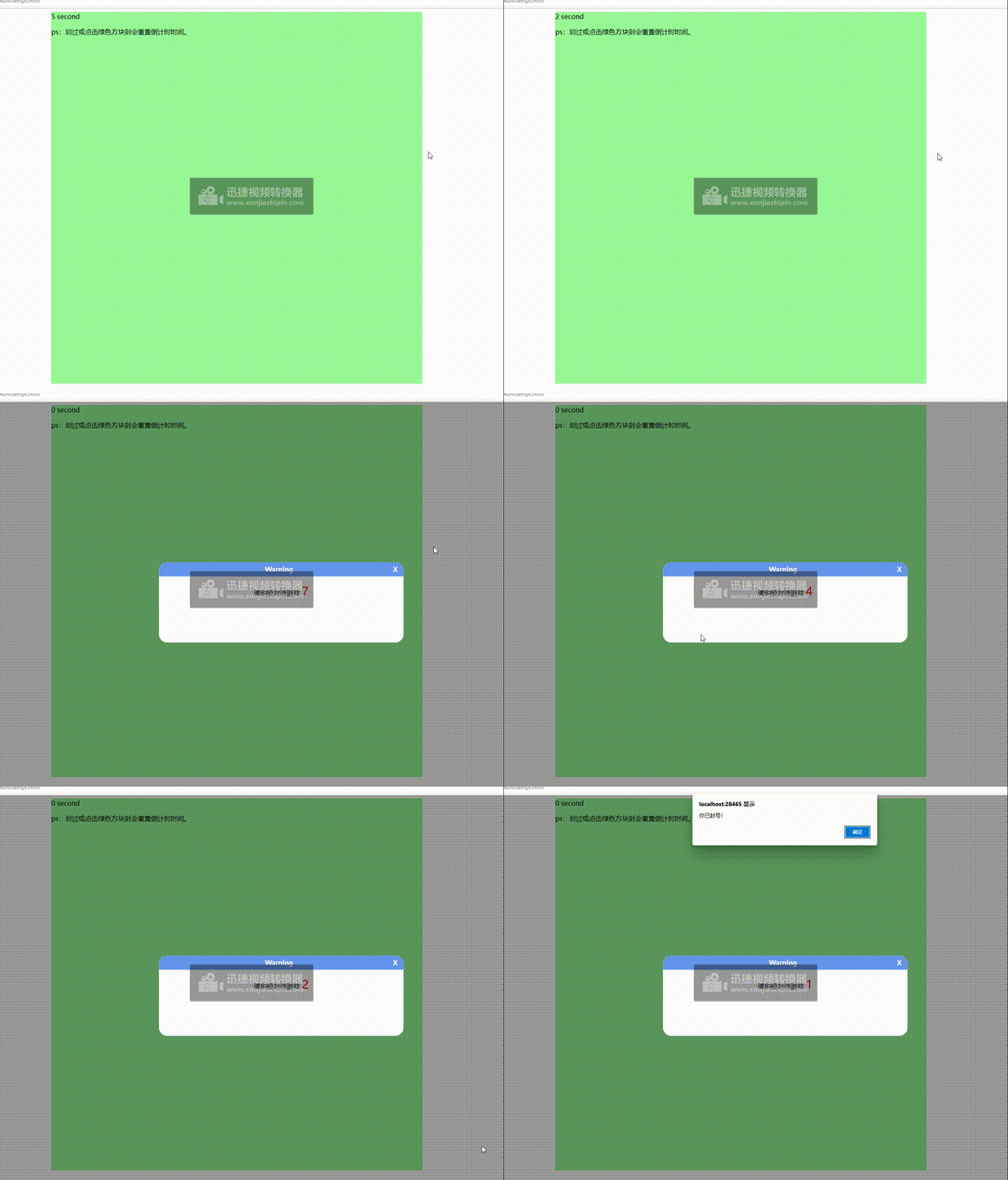
关闭任意一个警告窗口,即同时关闭所有已弹出的警告提示。
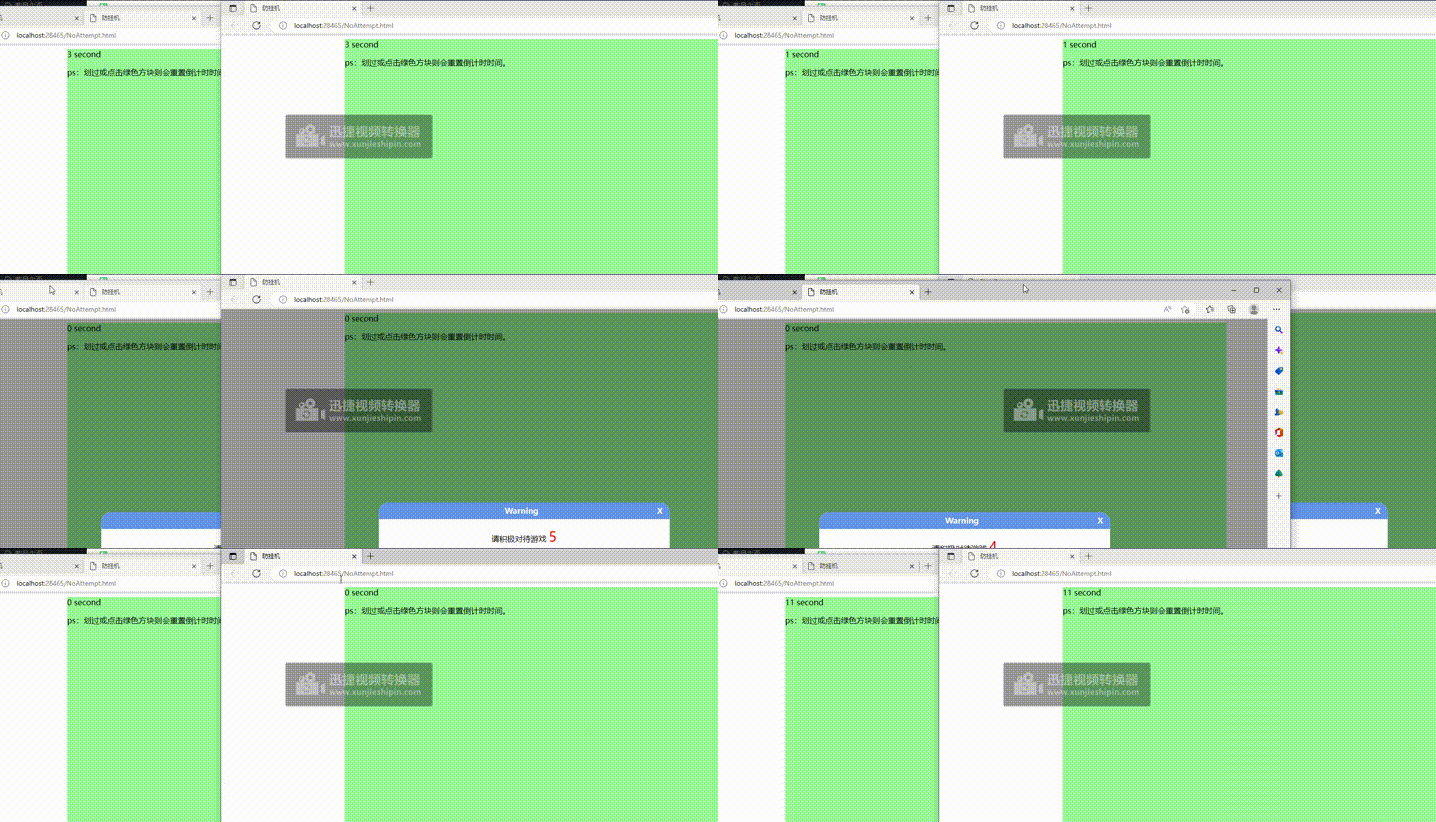
当用户在页面进行任何操作时,系统将重置其他所有页面的倒计时计时器。
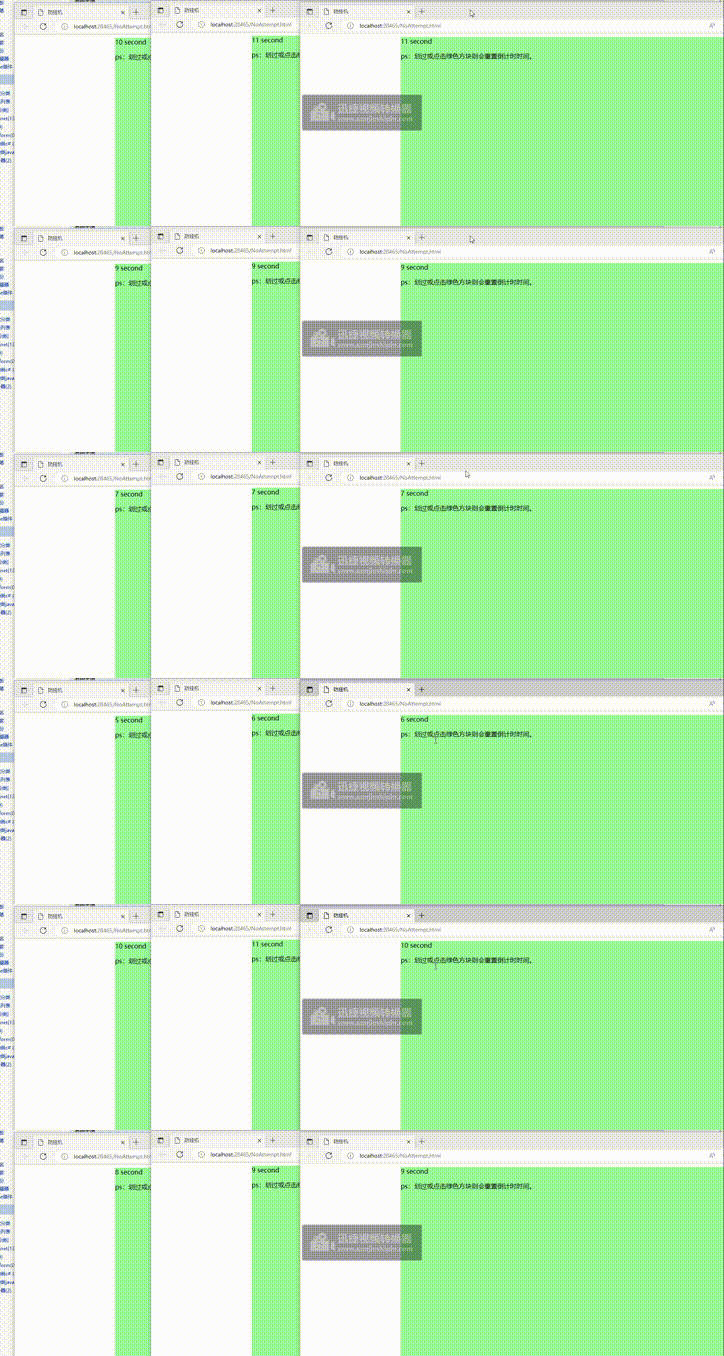
实现原理
1. 分别定义用于常规计时的定时器和用于弹出警告的定时器。
2. 定义监控区域或监控接口,当检测到用户触发重置定时器任务时进行响应。
3. 当常规倒计时定时器执行结束后,调用警告定时器任务以弹出提示。
4. 当警告定时器处于激活状态时:
- 若用户关闭了警告窗口,则重启相关定时器。
- 若用户持续不操作,则执行退出登录或其他业务操作。
难点
1. 当存在多个页面时,需以最新操作的页面的计时器作为全局时间基准。
2. 当多个页面同时出现倒计时警告时,关闭其中任意一个,则需要关闭所有警告提示。
3. 若A页面先开始倒计时,B页面后开始倒计时。当A页面倒计时结束时,不允许直接关闭或退出系统(因为B页面尚未结束)。
代码实现
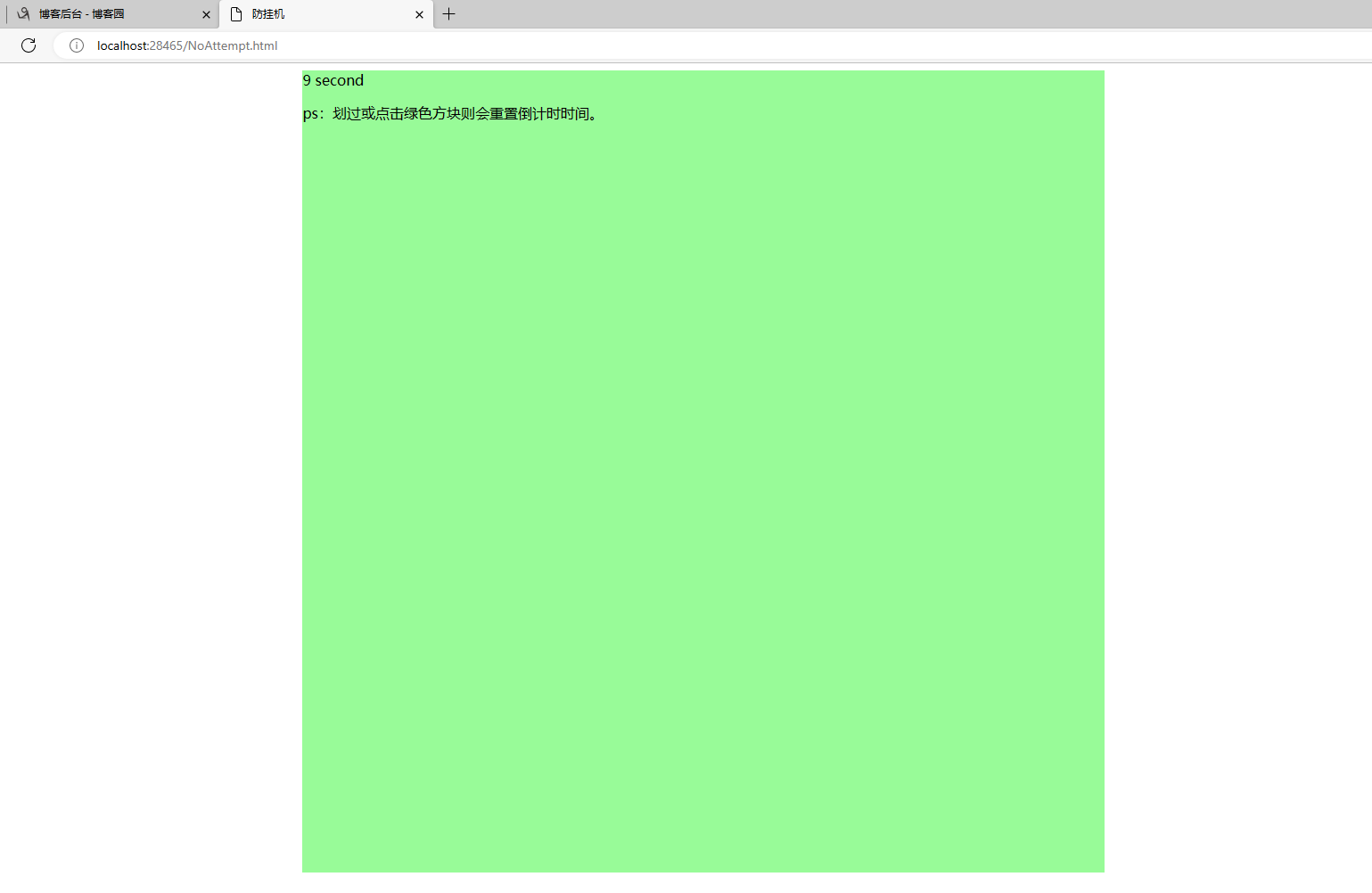
由于防挂机及无操作弹窗的需求逻辑在不同语言中基本一致,此处仅使用JavaScript进行代码演示。代码中已包含详细注释。
初始化变量
//定义全局变量
        var Min = 1; //可以设置动态读取
        var RunTime = 0; //进行中的时间,单位秒
        var StayTimer = null;//全局定时器
        var WarningTimer = null;//警告的定时器
        var TimeSwich = false;//防止重复启动(重复启动会导致多读了3秒)
        test = 0;//测试变量(不影响整体逻辑)

        //定义监控范围(绿色方块)
        var vdoc = document.getElementById("myFrame");
        setDocumentEventListener(vdoc);
        //开局执行一次
        resetTimer();
开始倒计时的方法
function SetTimer() {
            /*if (TimeSwich = true;)*/
            clearInterval(StayTimer);
            //设置定时任务的时间
            RunTime = Number(Min * 12);

            test = 111;
            //设置定时任务;
            StayTimer = setInterval(() => {
                /*TimeSwich = true;*/
                timeOut();
            }, 1000);
            //random()
        }
核心方法
function timeOut()
        {
            RunTime--;
            //这两行代码都是输出显示
            console.log(RunTime);
            document.getElementById("lastTime").innerHTML = RunTime;

            if (RunTime <= 0) {

                //正常倒计时结束,将IsReset赋值2,使其他标签看到就提前弹框告知是否继续使用!!!
                var isReset = window.localStorage.setItem("IsReset", 2);
                clearInterval(StayTimer);

                //开启警告倒计时
                document.getElementsByClassName("fullScreenDiv")[0].style.display = "block";
                document.getElementsByClassName("promptDiv")[0].style.display = "block";
                startCountDown(document.getElementById("spanCountDown").innerText);

            }

            //检测别的页面是否有操作,有则刷新当前页的倒计时;
            var isReset = window.localStorage.getItem("IsReset");
            if (isReset == 1) {
                SetTimer();
                //延迟1秒后,执行删除;(延迟的作用是为了使其充分的删除所有标签页的警告)
                setTimeout(function () {
                    window.localStorage.removeItem('IsReset');
                }, 1000);
            }
            //如果IsReset=2,证明其他标签的倒计时结束了,此时本标签也弹框。让用户进行选择关闭还是继续;
            else if (isReset == 2) {
                clearInterval(StayTimer);
                //setTimeout(function () {
                //    window.localStorage.removeItem('IsReset');
                //}, 1000);
                document.getElementsByClassName("fullScreenDiv")[0].style.display = "block";
                document.getElementsByClassName("promptDiv")[0].style.display = "block";
                startCountDown(document.getElementById("spanCountDown").innerText);
            }
        }
重置倒计时任务
function resetTimer() {
    var isReset = window.localStorage.setItem("IsReset", 1);
    TimeSwich = false;
    SetTimer();
}
开启警告倒计时的方法
function startCountDown(html) {
            clearInterval(WarningTimer);
            WarningTimer = setInterval(() => {
                html = parseInt(html) - 1;
                if (parseInt(html) <= 0) {
                    closeme();
                }
                document.getElementById("spanCountDown").innerText = html;

                var checkClose = window.localStorage.getItem('checkClose');
                if (checkClose == "1") {
                    backInit()
                    setTimeout(function () {
                        //1秒后执行刷新
                        window.localStorage.removeItem('checkClose');
                    }, 1000); //单位是毫秒
                }

            }, 1000);
        }
关闭和重置警告倒计时的方法
function closeme() {
            //debugger;
            var browserName = navigator.appName;
            if (browserName == "Netscape") {
                window.open('', '_parent', '');
                window.close();
            } else if (browserName == "Microsoft Internet Explorer") {
                window.opener = "whocares";
                window.close();
            }
            alert("你已封号!");
        }

        function backInit() {
            window.localStorage.setItem("checkClose", "1");
            resetTimer();
            document.getElementById("spanCountDown").innerText = 7;
            clearInterval(WarningTimer);
            document.getElementsByClassName("fullScreenDiv")[0].style.display = "none";
            document.getElementsByClassName("promptDiv")[0].style.display = "none";
        }
源代码
<!DOCTYPE html>
<html>
<head>
    <meta charset="utf-8" />
    <title>防挂机</title>
</head>
<body>

    <!--监控页面-->
    <div id="myFrame" style="background-color: palegreen; margin-left: 20%; width: 900px; height: 900px">
        <span id="lastTime">:</span>
        <span>second</span>
        <p>ps:划过或点击绿色方块则会重置倒计时时间。</p>
    </div>

    <!--警告倒计时页面-->
    <div class="fullScreenDiv" style="display:none;z-index: 800;">
        <div class="promptDiv" style="display:none;z-index: 800;padding-bottom: 20px;">
            <h4 class="close" onclick="backInit();">
                <span class="X" style="margin-right: 38%;">Warning</span>
                <span class="X">X</span>
            </h4>
            <p id="msgInfo" style="text-align: left;margin-left: 50px;margin-right: 50px;"></p>
            <p id="msgTimeout" style="text-align: left;margin-left: 50px;margin-right: 50px;margin-bottom: 15px;"></p>
            <span  style="margin-bottom: 50px;">请积极对待游戏</span>
            <span class="countDown" id="spanCountDown" style="margin-bottom: 50px;">7</span>
        </div>

    </div>


    <!--<script >-->
    <script type="text/javascript">

        //定义全局变量
        var Min = 1; //可以设置动态读取
        var RunTime = 0; //进行中的时间,单位秒
        var StayTimer = null;//全局定时器
        var WarningTimer = null;//警告的定时器
        var TimeSwich = false;//防止重复启动(重复启动会导致多读了3秒)
        test = 0;//测试变量(不影响整体逻辑)

        //定义监控范围(绿色方块)
        var vdoc = document.getElementById("myFrame");
        setDocumentEventListener(vdoc);
        //开局执行一次
        resetTimer();

        function SetTimer() {
            /*if (TimeSwich = true;)*/
            clearInterval(StayTimer);
            //设置定时任务的时间
            RunTime = Number(Min * 12);

            test = 111;
            //设置定时任务;
            StayTimer = setInterval(() => {
                /*TimeSwich = true;*/
                timeOut();
            }, 1000);
            //random()
        }


        function timeOut()
        {
            RunTime--;
            //这两行代码都是输出显示
            console.log(RunTime);
            document.getElementById("lastTime").innerHTML = RunTime;

            if (RunTime <= 0) {

                //正常倒计时结束,将IsReset赋值2,使其他标签看到就提前弹框告知是否继续使用!!!
                var isReset = window.localStorage.setItem("IsReset", 2);
                clearInterval(StayTimer);

                //开启警告倒计时
                document.getElementsByClassName("fullScreenDiv")[0].style.display = "block";
                document.getElementsByClassName("promptDiv")[0].style.display = "block";
                startCountDown(document.getElementById("spanCountDown").innerText);

            }

            //检测别的页面是否有操作,有则刷新当前页的倒计时;
            var isReset = window.localStorage.getItem("IsReset");
            if (isReset == 1) {
                SetTimer();
                //延迟1秒后,执行删除;(延迟的作用是为了使其充分的删除所有标签页的警告)
                setTimeout(function () {
                    window.localStorage.removeItem('IsReset');
                }, 1000);
            }
            //如果IsReset=2,证明其他标签的倒计时结束了,此时本标签也弹框。让用户进行选择关闭还是继续;
            else if (isReset == 2) {
                clearInterval(StayTimer);
                //setTimeout(function () {
                //    window.localStorage.removeItem('IsReset');
                //}, 1000);
                document.getElementsByClassName("fullScreenDiv")[0].style.display = "block";
                document.getElementsByClassName("promptDiv")[0].style.display = "block";
                startCountDown(document.getElementById("spanCountDown").innerText);
            }
        }

        //增加操作对象时所绑定的监控事件;
        function setDocumentEventListener(vdoc) {
            if (vdoc != null) {
                vdoc.addEventListener("mousemove", resetTimer, false);
                vdoc.addEventListener("mousedown", resetTimer, false);
                vdoc.addEventListener("keypress", resetTimer, false);
                vdoc.addEventListener("DOMMouseScroll", resetTimer, false);
                vdoc.addEventListener("mousewheel", resetTimer, false);
                vdoc.addEventListener("touchmove", resetTimer, false);
                vdoc.addEventListener("MSPointerMove", resetTimer, false);
            }
        }

        function resetTimer() {
            var isReset = window.localStorage.setItem("IsReset", 1);
            TimeSwich = false;
            SetTimer();
        }


        function startCountDown(html) {
            clearInterval(WarningTimer);
            WarningTimer = setInterval(() => {
                html = parseInt(html) - 1;
                if (parseInt(html) <= 0) {
                    closeme();
                }
                document.getElementById("spanCountDown").innerText = html;

                var checkClose = window.localStorage.getItem('checkClose');
                if (checkClose == "1") {
                    backInit()
                    setTimeout(function () {
                        //1秒后执行刷新
                        window.localStorage.removeItem('checkClose');
                    }, 1000); //单位是毫秒
                }

            }, 1000);
        }

        function closeme() {
            //debugger;
            var browserName = navigator.appName;
            if (browserName == "Netscape") {
                window.open('', '_parent', '');
                window.close();
            } else if (browserName == "Microsoft Internet Explorer") {
                window.opener = "whocares";
                window.close();
            }
            alert("你已封号!");
        }

        function backInit() {
            window.localStorage.setItem("checkClose", "1");
            resetTimer();
            document.getElementById("spanCountDown").innerText = 7;
            clearInterval(WarningTimer);
            document.getElementsByClassName("fullScreenDiv")[0].style.display = "none";
            document.getElementsByClassName("promptDiv")[0].style.display = "none";
        }


        (function () {


        })();


    </script>

    <style>
        .fullScreenDiv { /* 全屏div */
            display: none;
            position: absolute;
            left: 0px;
            top: 0px;
            width: 100%;
            height: 100%;
            background-color: rgba(0, 0, 0, 0.4);
        }

        .promptDiv { /* 提示框div */
            display: none;
            position: absolute;
            left: 50%;
            top: 50%;
            transform: translateX(-50%) translateY(-50%);
            width: 593px;
            height: 174px;
            border-radius: 20px;
            background-color: white;
            text-align: center;
        }

        .close {
            height: 34px;
            line-height: 34px;
            margin: 0px;
            text-align: right;
            border-top-left-radius: 20px;
            border-top-right-radius: 20px;
            background-color: cornflowerblue
        }

        .X {
            padding: 2px 6px;
            margin-right: 8px;
            color: white;
            cursor: pointer;
        }

        .countDown { /*倒计时关闭提示框*/
            color: red;
            font-size: 28px;
        }
    </style>


</body>
</html>
到此这篇关于JavaScript实现系统防挂机(无操作弹窗)的示例详解的文章就介绍到这了,更多相关JavaScript系统防挂机内容请搜索本站以前的文章或继续浏览下面的相关文章希望大家以后多多支持本站!
JS动态构建复杂嵌套JSON对象的方法
2026-11-05 15:41:52
JS负数取余为什么是负数?详解余数与模运算区别
2026-11-05 13:34:41
JS 解压出现乱码或报错怎么解决?
2026-11-05 12:32:38
JS 中 startsWith、indexOf 与正则判断字符串前缀的对比
2026-11-04 22:19:43
JS解析Excel后怎么将数据转换为JSON格式
2026-11-04 20:58:28